How to Download iOS 26 Developer Beta Today? Step-by-Step
Excited about Apple’s latest iOS update and ready to dive into the iOS 26 developer beta? With WWDC 2025 kicking off on June 9 and the developer beta released right after, today—June 12, 2025, at 03:34 PM EEST—is a great time to get started!
This guide will walk you through how to download and install the iOS 26 developer version on your iPhone, so you can explore the new “Liquid Glass” design and Apple Intelligence features early. Let’s jump in!
Why Download the iOS 26 Developer Beta Today?
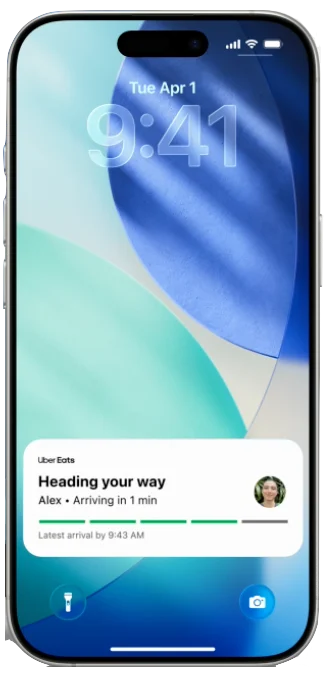
Announced at WWDC 2025, iOS 26 skips from iOS 18 to match the 2025-2026 season, bringing a fresh look and smart new features. The developer beta, available since June 9, lets you test these updates early—think translucent menus, a revamped Camera app, and smarter Siri. It’s perfect for developers or tech enthusiasts, though it’s a bit rough around the edges. If you’re up for the adventure, here’s how to get it today!
What You Need Before Downloading ?
Before you start, let’s make sure you’re ready to avoid any surprises:
- Compatible iPhone: iOS 26 works on iPhone 11 and later, but Apple Intelligence features need an iPhone 15 Pro, 15 Pro Max, or newer models. Check your device in Settings > General > About.
- Apple ID: You’ll need one tied to a free Apple Developer account.
- Backup: Back up your iPhone with iCloud or a computer—betas can be buggy, and you’ll want a safety net.
- Storage Space: You’ll need about 15GB free for the download.
- Wi-Fi Connection: A stable internet connection speeds things up.
Heads-Up: Avoid installing this on your everyday iPhone unless you have a backup plan—use a spare device if you can!
Step-by-Step Guide to Download iOS 26 Developer Beta Today?
Step 1: Enroll in the Apple Developer Program
- Open Safari on your iPhone and go to developer.apple.com.
- Sign in with your Apple ID. If you don’t have an account, click “Start Your Enrollment,” fill in your details (name, address, etc.), and select “individual” as your entity type. You can skip the payment step for the free tier.
- Agree to the terms, and you’re enrolled—takes just a minute!
Step 2: Enable Beta Updates on Your iPhone
- Go to Settings > General > Software Update on your iPhone.
- Tap Beta Updates (you might need to scroll down).
- Select “iOS 26 Developer Beta” from the list and tap Back.
- If you don’t see the option, restart your iPhone or ensure you’re signed in with the right Apple ID.
Step 3: Download and Install the Beta
- Back on the Software Update screen, the iOS 26 developer beta should appear. Tap Download and Install.
- Enter your passcode if asked, and agree to the terms.
- The download (around 15GB) will start—give it 20-40 minutes depending on your Wi-Fi speed. Your iPhone will restart a couple of times during installation.
- Once it’s done, you’ll land on the new iOS 26 home screen!
Step 4: Explore and Share Feedback
You’re now running iOS 26! Check out the Liquid Glass design, test the Camera app, or try the new Games app. If you hit any bugs, use the Feedback Assistant app (pre-installed on the beta) to report them to Apple.
Things to Keep in Mind
- Expect Bugs: This is an early beta (released June 9), so crashes or app issues are possible. Newer betas will improve over time.
- Public Beta Soon: The public beta starts in July if this feels too unstable.
- Roll Back Option: You can restore your iPhone to iOS 18.5 with a backup, but it’s a bit technical—plan ahead!
Finally
Downloading the iOS 26 developer beta today lets you experience Apple’s latest innovations firsthand. Whether you’re a developer testing apps or just eager to try the new look, this guide makes it straightforward. Just back up your iPhone and dive in with caution—fun awaits!
What are you most excited to try in iOS 26? Let me know in the comments—I’d love to hear your thoughts!






1 thought on “How to Download iOS 26 Developer Beta Today? Step-by-Step”