How to Download macOS 26 Tahoe Developer Beta Today – Step-by-Step Guide
If you’re excited about Apple’s latest software updates and want to get your hands on the macOS 26 Tahoe developer beta right now, you’re in the right place! With WWDC 2025 kicking off on June 9 and the developer beta dropping shortly after, today—June 12, 2025, at 03:10 PM EEST—is the perfect time to dive in.
macOS 26 Tahoe is the latest macOS. This guide will walk you through the process step-by-step, so you can start exploring the new features like the “Liquid Glass” redesign and Apple Intelligence upgrades. Let’s get started!
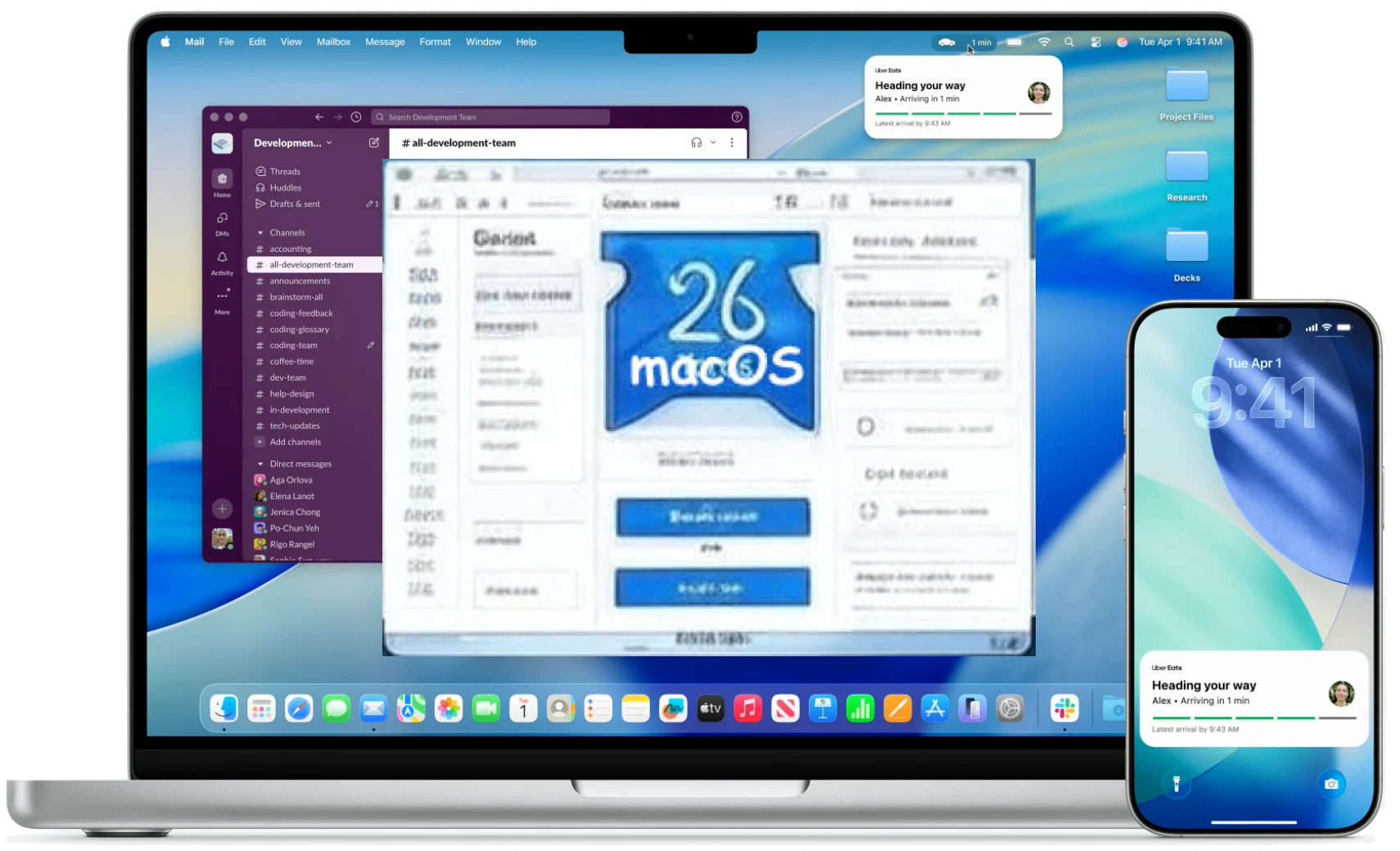
Why Download the macOS Developer Beta Today?
The macOS 26 Tahoe developer beta, unveiled at WWDC 2025, gives you early access to Apple’s latest Mac operating system. Named after Lake Tahoe and aligned with the 2025-2026 season, this beta includes a stunning visual overhaul and new tools for developers and tech enthusiasts. While it’s not the final version (that’s coming this fall), it’s a great way to test cutting-edge features—provided you’re ready for a few bugs along the way.
What You Need Before Downloading
Before you jump in, make sure you’re set up to avoid any hiccups:
- Compatible Mac: Check that your device supports macOS 26 Tahoe. Most M1, M2, or M3 Macs from 2020 onward should work, but older Intel-based models might not make the cut.
- Apple ID: You’ll need an Apple ID linked to a free or paid Apple Developer account.
- Backup: Since this is beta software, back up your Mac with Time Machine or a cloud service to protect your files.
- Storage Space: You’ll need at least 7-10GB free, depending on the beta size.
- Stable Internet: A reliable connection will make the download smoother.
Pro Tip: Don’t install this on your main work Mac unless you’re comfortable with potential glitches—use a spare device if possible!
Step-by-Step Guide to Download macOS 26 Developer Beta Today
Step 1: Enroll in the Apple Developer Program
- Head to developer.apple.com and sign in with your Apple ID.
- If you don’t have a developer account, click “Start Your Enrollment.” You can sign up for free—no $99/year fee is needed for basic beta access.
- Enter your details (name, address, etc.) and agree to the terms. Approval is usually instant with a free account.
Step 2: Download the Beta Profile
- Once enrolled, go to the Apple Beta Software Program page or the developer site’s download section.
- Look for the macOS 26 Tahoe developer beta profile and click “Install Profile” or “Download.”
- Open the downloaded file (it’ll be a .dmg or profile) and follow the on-screen instructions to install it.
Step 3: Enable Beta Updates on Your Mac
- On your Mac, click the Apple menu (top-left corner) and select System Settings or System Preferences (depending on your current macOS).
- Go to General > Software Update.
- Click the info button (ⓘ) next to “Beta Updates.”
- Choose “macOS Developer Beta” from the dropdown menu and click “Done.”
Step 4: Download and Install the Beta
- Your Mac will check for updates. When the macOS 26 Tahoe developer beta appears, click “Upgrade Now.”
- Enter your admin password if prompted.
- The download (around 7GB) will start—grab a coffee, as it might take 30-60 minutes depending on your internet speed.
- Once downloaded, the installation begins. Your Mac will restart a few times, and the process should finish in about 15-30 minutes.
- Log in with your Apple ID and set up any preferences when prompted.
Step 5: Explore and Provide Feedback
You’re now running macOS 26 Tahoe! Check out the new “Liquid Glass” design, updated Files app, and more. If you spot bugs, use the built-in Feedback Assistant app to report them to Apple—this helps shape the final release.
Things to Keep in Mind
- Bugs Are Normal: As a developer beta (released post-WWDC 2025 on June 9), expect some crashes or quirks. Newer betas will stabilize over time.
- Public Beta Coming Soon: The public beta drops in July, so if this feels too rough, you can wait a few weeks for a tamer version.
- Roll Back Option: If things go sideways, you can revert to your backup, though it’s a bit technical—consider sticking with a secondary Mac for now.
Finally
Downloading the macOS 26 Tahoe developer beta today lets you peek into Apple’s future for your Mac. Whether you’re a developer testing apps or just a curious tech fan, this guide makes it simple to get started. Just remember to back up and proceed with caution—adventure awaits!
What are you most excited to try in macOS 26 Tahoe? Share your thoughts in the comments—I’d love to hear about your experience!






1 thought on “How to Download macOS 26 Tahoe Developer Beta Today – Step-by-Step Guide”