How to Use Homebrew on an Old Unsupported Mac Running OCLP (2026)?
Running Homebrew on an old Mac that uses OCLP to run macOS Sequoia is totally possible — but it comes with specific limitations you need to know upfront. This guide covers exactly what Homebrew’s Tier 3 classification means for you, which packages work, which ones build from source, and how to get the best experience possible.
What “Tier 3” Means for Your Old Mac
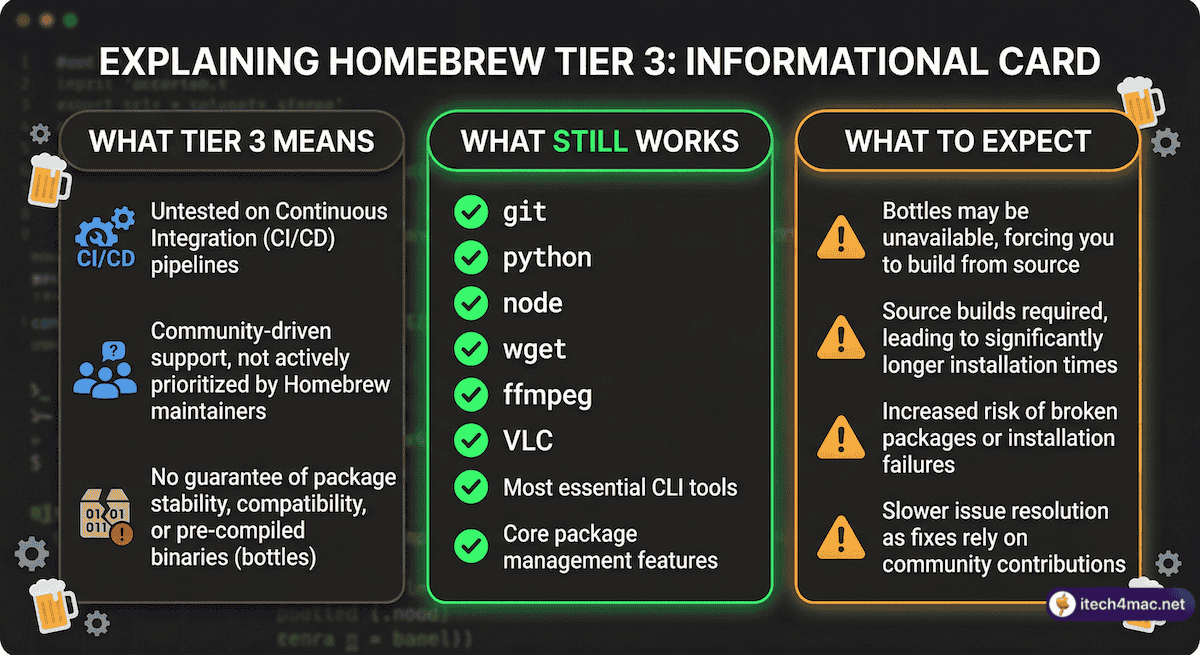
Homebrew officially classifies Macs using OpenCore Legacy Patcher with a Westmere or newer Intel CPU as Tier 3 — the lowest support level. Here is what that actually means in practice:
- Bottles (pre-built binaries) may be unavailable. When a bottle is not available for your macOS configuration, Homebrew falls back to building the package from source. This takes much longer but usually works.
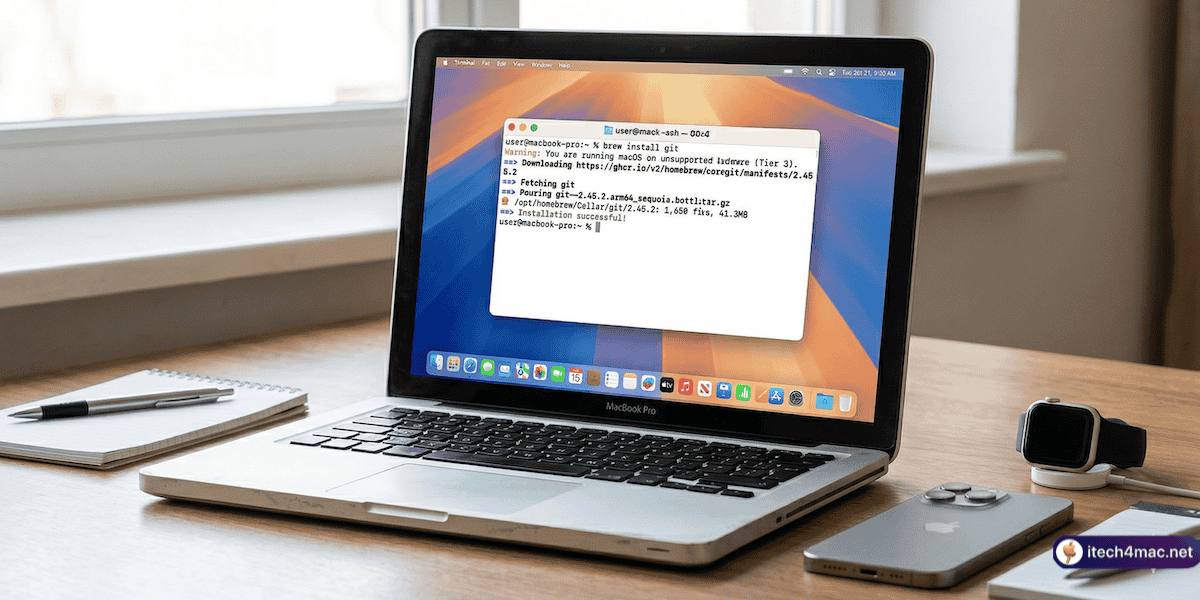
- Homebrew will show warnings. Expect messages like “Warning: You are running macOS on unsupported hardware.” These are informational — not errors.
- Homebrew maintainers do not commit to fixing Tier 3 bugs. If something stops working specifically because of your OCLP setup, there is no official support path.
- Most common packages still work fine. The Tier 3 classification is a support statement, not a compatibility block. Everyday tools like git, wget, python, ffmpeg, and most developer packages install and run without issues.
How to Install Homebrew on an OCLP Mac
The installation process is identical to any other Mac. Open Terminal and run:
/bin/bash -c "$(curl -fsSL https://raw.githubusercontent.com/Homebrew/install/HEAD/install.sh)"
You may see a Tier 3 warning during installation. Proceed normally. The installation will complete successfully on all supported OCLP configurations (Westmere CPU or newer running Sequoia).
Packages That Work Well on OCLP + Sequoia
Tested on MacBook Pro (2015) running macOS Sequoia 15.7.5 via OCLP 2.4.1:
| Package | Status on OCLP | Notes |
|---|---|---|
| git | ✅ Works perfectly (bottle) | No issues |
| wget, curl | ✅ Works perfectly (bottle) | No issues |
| python, node | ✅ Works perfectly (bottle) | No issues |
| ffmpeg | ✅ Works (may build from source) | Slower install, fully functional |
| htop, tree, bat | ✅ Works perfectly | No issues |
| imagemagick | ✅ Works (builds from source) | Allow extra time |
| VLC (cask) | ✅ Works perfectly | Installs as .app normally |
| VS Code (cask) | ✅ Works (Rosetta 2 on Intel) | Fully functional |
| ripgrep, fzf | ✅ Works perfectly | No issues |
| yt-dlp | ✅ Works perfectly | No issues |
Packages to Be Careful With
| Package | Issue | Workaround |
|---|---|---|
| Packages requiring Apple Silicon GPU | Will install but GPU-accelerated features will not work | Use CPU-based alternatives where available |
| Very new casks built for macOS 15+ only | May show “requires macOS 15 or later” and refuse to install | Check for older versions or use direct download |
| Packages using Apple’s Neural Engine | Not available on Intel — will either fail or fallback to CPU | CPU fallback usually works, just slower |
Tips for the Best Homebrew Experience on OCLP
- Connect via Ethernet for large builds. Source-compiled packages on Tier 3 systems can take 10–30 minutes. A stable connection prevents download interruptions.
- Re-run OCLP root patches after macOS updates before running brew. If your Wi-Fi or GPU patches are missing, some Homebrew operations that download packages may fail.
- Use
brew doctorafter every macOS update to check that Homebrew’s environment is still intact. - Stick to Tier 1 packages. Popular formulae like git, python, node, wget, and ffmpeg have wide testing coverage and almost always work on Tier 3 systems.
What About Homebrew on OCLP + macOS Tahoe?
Once OCLP 3.0.0 stable ships and macOS Tahoe becomes installable on old Macs, the situation will be similar to today but with higher Tahoe-specific build requirements. Homebrew already officially supports macOS Tahoe (Tier 1 for both Apple Silicon and Intel). The combination of OCLP + Tahoe will still be Tier 3, with the same caveats as today. Monitor our OCLP tag for updates.