How to Safely Downgrade from macOS Tahoe Back to Sequoia on Apple Silicon?
It happens to the best of us. The allure of a new macOS version, like macOS Tahoe (macOS 16), is strong. You want the newest features, the redesigned interfaces, and the promise of better performance on your shiny new M4 MacBook Air. You take the plunge, install the upgrade – perhaps even a public beta – and then reality sets in.
Maybe your essential professional apps crash on launch. Maybe your battery life has tanked. Or maybe, like many users, you just simply don’t like the direction Apple took with the user interface in Tahoe.
If you are reading this, you have likely already tried to live with it and decided it’s not working. You want to go back to the stability of macOS Sequoia (macOS 15).
However, if you have made the switch from an older Intel-based Mac to an Apple Silicon Mac (M1, M2, M3, or the new M4), you need to know that the rules of downgrading have changed dramatically. The old tricks you might remember from five years ago do not work on this new architecture.
This article is the definitive, step-by-step guide on exactly what you should actually do to downgrade from macOS Tahoe on any Apple Silicon Mac.
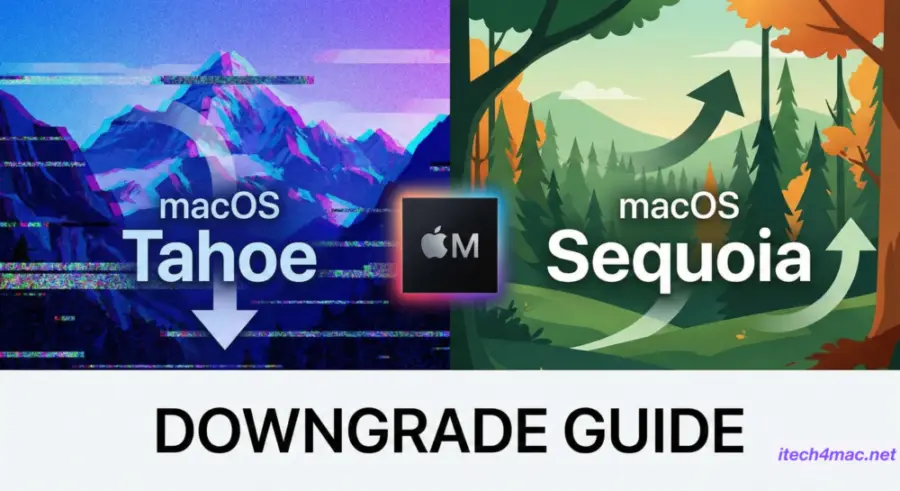
Table of content:
- How to Safely Downgrade from macOS Tahoe Back to Sequoia on Apple Silicon (M1-M4): The Definitive Guide
- 1️⃣ Phase 1: The Vital Prerequisites
- 1. The “Manual” Data Backup (Crucial)
- 2. Gather Your Tools
- 2️⃣ Phase 2: Creating the Bootable macOS Sequoia Installer
- Step 1: Acquire the macOS Sequoia Installer
- Step 2: Format Your USB Stick
- Step 3: The Terminal Command Magic
- 3️⃣ Phase 3: The Wipe and Install (Apple Silicon Specifics)
- Step 1: Entering Startup Options
- Step 2: The Point of No Return (Erasing the Drive)
- Step 3: Booting from the USB Installer
- 4️⃣ Phase 4: Post-Installation and Restoring Data
Crucial Reality Check: Addressing Common Misconceptions about macOS downgrade
Before we grab our external hard drives, we must address the most common misunderstanding about downgrading on Apple Silicon, a question we frequently see on forums like Reddit.
The Myth: “If I just go into System Settings and choose ‘Erase All Content and Settings,’ won’t that factory reset my Mac back to the original OS?”
The Reality: Absolutely not.
Using the “Erase All Content and Settings” feature on macOS is fantastic for quickly wiping your personal data before selling a laptop. However, it only wipes user data. It leaves the operating system untouched. If you do this while running macOS Tahoe, when your Mac wakes back up at the “Hello” screen, it will still be running macOS Tahoe.
The Truth About Internet Recovery: On old Intel Macs, you used to be able to hold down specific key combinations (like Shift-Option-Command-R) during boot to force the Mac to download the OS that originally shipped with the computer.
Apple Silicon Macs do not work this way. The recovery partition on your Mac’s SSD is updated alongside your main operating system. Once you installed Tahoe, your recovery environment became a Tahoe recovery environment. There is no magic key combination to force it to fetch Sequoia from Apple’s servers without prior preparation.
The Only Way Forward: To downgrade an Apple Silicon Mac, you have only one path: The “Nuke and Pave.”
You must completely erase your internal drive and clean-install macOS Sequoia using a bootable USB drive that you create yourself.
Yes, this means you must download the full 13GB-15GB installer for macOS Sequoia. If you have a slow internet connection, there is no way around this download. You will need to start the download and let it run overnight.
How to Safely Downgrade from macOS Tahoe Back to Sequoia on Apple Silicon (M1-M4): The Definitive Guide
1️⃣ Phase 1: The Vital Prerequisites
Do not skip these steps. Attempting a downgrade without preparation is a recipe for total data loss.
1. The “Manual” Data Backup (Crucial)
This is the most critical point in this entire article.
Do NOT rely solely on a Time Machine backup made while running macOS Tahoe.
Why? Apple’s migration tools are designed to go forward, not backward. If you back up your Mac today on Tahoe, and tomorrow you clean-install Sequoia, Migration Assistant on Sequoia will likely refuse to import your data from the Tahoe Time Machine drive because the backup version is “newer” than the OS you are trying to restore onto.
What you must do instead: You need to perform a manual backup of your essential files to an external hard drive or cloud storage. Drag and drop your Documents folder, Desktop contents, Photos libraries, vital project files, and anything else you cannot live without onto an external SSD.
Assume that once you start this process, everything currently on your laptop will be incinerated.
2. Gather Your Tools
- An External USB Drive: You need a USB-C flash drive or portable SSD with at least 32GB of free space. This drive will be completely erased to become your Sequoia installer.
- A Stable Internet Connection: As mentioned, you need to download roughly 15GB of data.
- Power: Plug your MacBook Air or Pro into its power adapter. Do not attempt this on battery power.
2️⃣ Phase 2: Creating the Bootable macOS Sequoia Installer
This process involves using the Terminal. Don’t panic; if you copy and paste the commands exactly, it is safe.
Step 1: Acquire the macOS Sequoia Installer
You cannot find older OS versions easily in the Mac App Store search bar. You need a direct link or a Terminal command to fetch it.
The easiest way on a modern Mac is to use the Terminal to request the full installer from Apple.
- Open Terminal (find it in Applications > Utilities).
- Paste the following command and press Enter:
softwareupdate --fetch-full-installer --full-installer-version 15.5(Note: Check the current final version number of macOS Sequoia. If it ended at 15.6 or 15.7, adjust that number appropriately. 15.5 is used here as an example). - Your Mac will now download the massive 13GB+ installer file into your main “Applications” folder. Wait for this to finish completely.
Step 2: Format Your USB Stick
- Plug in your 32GB+ USB drive.
- Open Disk Utility.
- Select your USB drive on the left sidebar (make sure you select the physical drive, not just the volume under it. If you don’t see it, click View > Show All Devices).
- Click Erase.
- Name:
MyVolume(It is vital you use this exact name so the Terminal command below works). - Format: Mac OS Extended (Journaled).
- Scheme: GUID Partition Map.
- Click Erase.
Step 3: The Terminal Command Magic
Now we turn that empty USB stick into a bootable installer.
- Make sure the “Install macOS Sequoia” app is sitting in your Applications folder.
- Make sure your USB stick named “MyVolume” is plugged in.
- Open Terminal again.
- Copy and paste this entire block of text into Terminal and hit Enter. You will need to type your Mac’s admin password.
sudo /Applications/Install\ macOS\ Sequoia.app/Contents/Resources/createinstallmedia --volume /Volumes/MyVolume
Terminal will show its progress as it erases the disk and copies the installer files. This can take 20 to 40 minutes depending on the speed of your USB drive. Wait until Terminal says the process is complete before ejecting the drive.
3️⃣ Phase 3: The Wipe and Install (Apple Silicon Specifics)
This is where the process diverges significantly from Intel Macs. Follow these steps precisely for M1, M2, M3, or M4 chips.
Step 1: Entering Startup Options
- Plug your newly created bootable Sequoia USB drive directly into a port on your Mac.
- Go to the Apple Menu -> Shut Down. Wait for the Mac to turn off completely (the screen goes totally black).
- Press and HOLD the power button (Touch ID button). Keep holding it.
- You will see the Apple logo appear, and text below it will say “Continue holding for startup options.”
- Keep holding until you see a screen with your hard drive icon and a gear icon labeled “Options.” Release the power button.
Step 2: The Point of No Return (Erasing the Drive)
- Click on “Options” and then click Continue. You may need to select a user and enter your password to enter Recovery Mode.
- Once the Recovery menu bar appears at the top of the screen, do not select “Reinstall macOS Tahoe” from the main window.
- Instead, open Disk Utility from the menu options.
- In Disk Utility, look at the left sidebar. At the very top, you will see your internal drive structure, usually labeled “Macintosh HD” under a heading like “Internal.”
- You want to select the highest level of that internal grouping, often called the “Volume Group.”
- Click the Erase button in the toolbar.
- Name it: Macintosh HD
- Format: APFS
- Currently, on Apple Silicon recovery, you will likely see a button that says “Erase Volume Group” or “Erase Mac…”. Click that button. confirm that you want to nuke everything.
Your Mac is now empty. It has no operating system.
Step 3: Booting from the USB Installer
- Quit Disk Utility to return to the main Recovery screen.
- Your Mac might restart automatically after the erase. If it does, you need to repeat “Step 1: Entering Startup Options” above (shut down, hold power button).
- When you get back to the “Startup Options” screen showing available drives, you should now see your external USB drive listed as an option (e.g., “Install macOS Sequoia”).
- Select the USB installer and click Continue.
- The macOS Sequoia installer will launch. Follow the on-screen prompts, select your freshly erased internal Macintosh HD as the destination, and begin the installation.
Your Mac will reboot several times. Eventually, you will be greeted by the familiar macOS Sequoia setup screen.
4️⃣ Phase 4: Post-Installation and Restoring Data
Congratulations, you have successfully downgraded your Apple Silicon Mac. You are back on Sequoia.
When you go through the initial setup process, the Mac will ask if you want to transfer information from a Mac, Time Machine backup, or startup disk.
Do NOT try to restore from the Time Machine backup you made on Tahoe right now. It will likely fail or create system instability because you are trying to jam newer system support files into an older OS.
Instead, choose “Not Now” and set the Mac up as a brand-new computer with a fresh user account.
Once you reach the desktop:
- Plug in the external hard drive containing your manual drag-and-drop backup from Phase 1.
- Manually copy your Documents, Desktop files, and media libraries back into their respective folders on your new Sequoia installation.
- Reinstall your applications one by one.
This method, while time-consuming, guarantees a clean, stable system with none of the leftover buggy preference files that caused you to leave Tahoe in the first place. You now have your stable, high-performance M4 Mac back the way you wanted it.