Download macOS Sequoia on Windows Laptop (Create ISO Step-by-Step)?
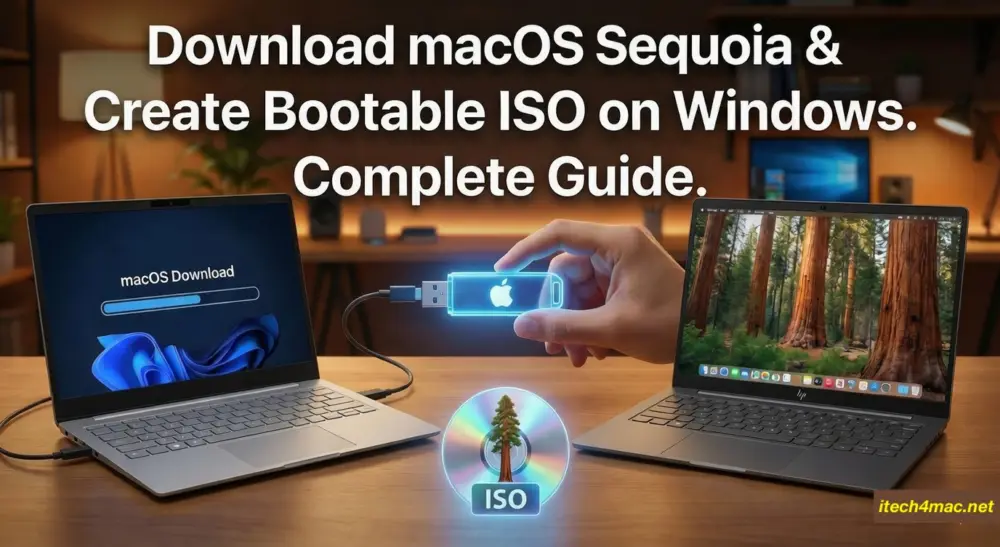
Apple officially distributes macOS only through the Mac App Store, which makes downloading macOS on a Windows laptop seem impossible at first. However, if your goal is to run macOS Sequoia in a virtual machine, test apps, or prepare an installer in advance, there is a safe and reliable way to download macOS Sequoia on Windows and convert it into an ISO image.
In this guide, I’ll walk you through the cleanest and most reliable method, using files downloaded directly from Apple servers, without modified or suspicious installers.
⚠️ Important Notes Before You Start
- macOS is licensed by Apple to run on Apple hardware.
- Running macOS inside a virtual machine on Windows is commonly done for testing and educational purposes.
- This guide focuses on downloading macOS Sequoia and creating an ISO, not installing it directly on physical Windows hardware.
What You’ll Need
- Windows 10 or Windows 11 laptop
- Administrator access
- Stable internet connection (macOS Sequoia is large)
- At least 25–30 GB of free disk space
- Basic familiarity with Windows folders
Why You Should NOT Download Random macOS ISOs
Many websites offer “ready-made macOS Sequoia ISO downloads”, but these often:
- Contain modified system files
- Are outdated or incomplete
- Fail to boot in VMware or VirtualBox
The method below avoids all of that by pulling files straight from Apple.
How to Download macOS Sequoia on Windows and Create an ISO Image?
Step 1: Download macOS Sequoia on Windows Using gibMacOS
The most trusted tool for downloading macOS installers on Windows is gibMacOS, an open-source utility that fetches official installer files directly from Apple’s servers.
1. Download gibMacOS
- Visit the official GitHub repository:
https://github.com/corpnewt/gibMacOS - Click Code → Download ZIP
- Extract the ZIP file (for example:
C:\gibMacOS)
2. Run gibMacOS
- Open the extracted folder
- Right-click on
gibMacOS.bat - Choose Run as administrator
A command-line window will appear showing a list of available macOS versions.
Step 2: Select macOS Sequoia
- From the numbered list, look for macOS Sequoia (15.x)
- Type the number next to it and press Enter
- When prompted, confirm downloading the full installer
The tool will now download all required files directly from Apple. Depending on your internet speed, this may take 30 to 90 minutes.
Step 3: Locate the Downloaded macOS Sequoia Files
Once the download is complete, navigate to:
gibMacOS\macOS Downloads\publicrelease\
Inside, you’ll find a folder containing important files such as:
BaseSystem.dmgInstallESD.dmg- Chunklist and package files
At this point, macOS Sequoia is successfully downloaded on your Windows laptop.
Step 4: Create a macOS Sequoia ISO Image on Windows
To run macOS Sequoia in VMware or VirtualBox, you’ll need to convert the installer into an ISO file.
Recommended Tools
- PowerISO – https://www.poweriso.com
- UltraISO – https://www.ultraiso.com
These tools are widely used and stable for DMG to ISO conversion.
Convert DMG to ISO
- Open PowerISO or UltraISO
- Open the file:
BaseSystem.dmg - Choose Convert
- Select output format: ISO
- Save as:
macOS_Sequoia.iso
After conversion, your ISO file will be ready for use in a virtual machine.
Step 5: What Can You Do With the macOS Sequoia ISO?
You can now:
- Run macOS Sequoia in VMware Workstation
- Test macOS apps and Safari
- Learn macOS without owning a Mac
- Prepare files for later use on Apple hardware
For VMware virtualization, VMware’s official documentation can be found here:
https://www.vmware.com/products/workstation-pro.html
Common Issues and Fixes
macOS Version Not Listed in gibMacOS
- Update gibMacOS to the latest version
- Ensure you’re connected to the internet without restrictions
ISO Fails to Boot in VMware
- Reconvert the DMG file
- Ensure virtualization is enabled in BIOS
- Allocate at least 8 GB RAM to the virtual machine
Downloading macOS Sequoia on a Windows laptop and creating an ISO image is absolutely possible when done correctly. By using official Apple sources and trusted tools, you avoid unstable installers and compatibility issues.
This method is currently the most reliable and widely used approach for Windows users who want to experience macOS Sequoia safely.





2 thoughts on “Download macOS Sequoia on Windows Laptop (Create ISO Step-by-Step)?”