How to Restore Homebrew After macOS Tahoe 26 Update Wipes It (Relocated Items Fix – 2026 Guide)
macOS Tahoe 26 (including versions 26.0, 26.0.1, 26.1, and 26.2) introduced several under-the-hood changes to file system handling, security (Gatekeeper), and version detection. For many users, especially developers and power users, these updates cause Homebrew (the popular macOS package manager) to break or appear “wiped.”
Common symptoms include:
- The brew command not found or hangs.
- Entire /opt/homebrew (Apple Silicon) or /usr/local (Intel) folder missing or relocated.
- Errors like: unknown or unsupported macOS version: “26.0” in brew config or brew doctor.
- Apps/packages moved to a Relocated Items folder (often in /Users/Shared/Relocated Items or similar paths like Library/Shared/Security/Moved Items).
- Homebrew operations failing after minor point updates (e.g., 26.0 → 26.0.1 repeating the issue).
This happens because Tahoe’s aggressive security resets, firmlink changes, or version string mismatches treat Homebrew files as “incompatible” or “untrusted,” leading to relocation or deletion during updates. It’s more pronounced on Intel Macs and in early Tahoe releases, but persists in some cases even in 26.2.
Good news: In most cases, you can restore Homebrew quickly without a full reinstall of macOS. This guide walks you through diagnosis, recovery from Relocated Items, and safe restoration steps tested on Tahoe 26.x in early 2026.
Important: Always back up important data first (Time Machine or external drive). If you’re uncomfortable with Terminal, stop and seek help from Apple Support or a forum.
Prerequisites Before Starting
- Backup Everything:
- Run Time Machine backup.
- Copy any critical Homebrew-installed packages’ data (e.g., databases, configs in ~/Library or /opt/homebrew).
- System Check:
- Ensure you’re on macOS Tahoe 26.x (About This Mac).
- Have admin access.
- Stable internet (for reinstalling Homebrew).
- Xcode Command Line Tools installed (run xcode-select –install if needed).
- Tools Needed:
- Terminal (Applications > Utilities > Terminal).
- Optional: Finder for checking folders.
Step-by-Step Guide to Restore Homebrew
Step 1: Check for Relocated Items Folder
macOS often moves “suspicious” files to Relocated Items during updates.
- Open Finder → Go → Go to Folder… (Command + Shift + G).
- Enter: /Users/Shared/Relocated Items (or search Spotlight for “Relocated Items”).
- Alternative paths: ~/Library/Shared/Security/Moved Items or /Library/Shared/Security/Moved Items.
- Look inside for folders like:
- Applications
- Homebrew-related (e.g., remnants of /opt/homebrew or /usr/local)
- Config files (.plist, .dylib, etc.)
- If found:
- Copy anything useful (e.g., custom configs) to a safe spot (Desktop or Documents).
- Do not move everything back blindly—many items are deprecated or unsafe.
- Once backed up, you can delete the Relocated Items folder (it’s usually safe; Apple places an alias on Desktop for easy access).
If nothing is there, proceed—your Homebrew was likely fully removed or broken by version mismatch.
Step 2: Diagnose the Current State
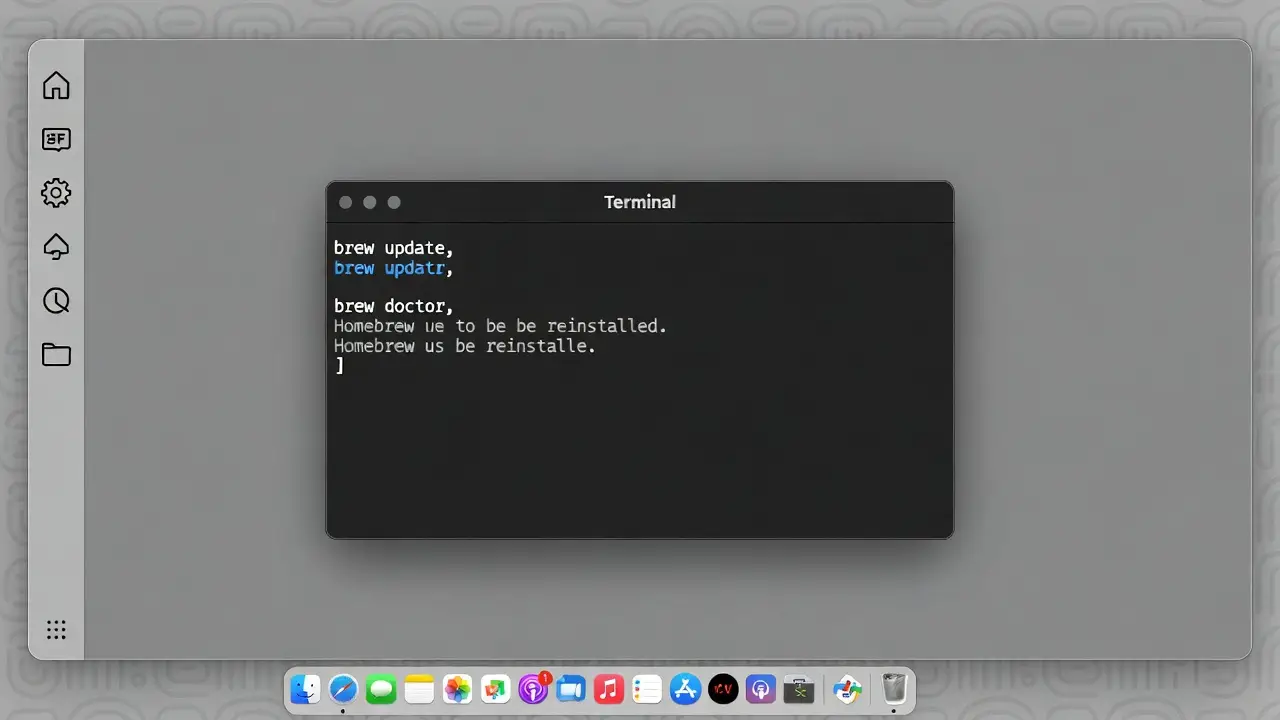
Open Terminal and run these commands one by one:
brew --version   # If "command not found," it's wiped/broken
which brew       # Should show /opt/homebrew/bin/brew (Apple Silicon) or /usr/local/bin/brew (Intel)
brew doctor      # Note errors (ignore minor warnings)
brew config      # Look for macOS version error
Common error: unknown or unsupported macOS version: “26.0” — this means Homebrew doesn’t recognize Tahoe yet (fixed in newer versions via update).
Step 3: Quick Fix – Try Updating Homebrew First
Many users report this resolves version detection issues:
# If brew still works partially
brew update
brew update-reset   # Resets to stock if patched/old
brew doctor
If brew update succeeds and fixes things → you’re done! Test with brew install hello or similar.
If brew is not found → skip to reinstall.
Step 4: Fully Reinstall Homebrew (Recommended if Wiped)
The safest, most reliable way in Tahoe 26.x is a clean reinstall.
- Remove Any Leftover Remnants (careful!):
- For Apple Silicon (most modern Macs):Bash
/bin/bash -c "$(curl -fsSL https://raw.githubusercontent.com/Homebrew/install/HEAD/uninstall.sh)"Or manual:Bashsudo rm -rf /opt/homebrew - For Intel:Bash
sudo rm -rf /usr/local/Homebrew
- For Apple Silicon (most modern Macs):Bash
- Reinstall Homebrew: Run the official one-liner (works on Tahoe 26+ as of early 2026):Bash
/bin/bash -c "$(curl -fsSL https://raw.githubusercontent.com/Homebrew/install/HEAD/install.sh)"- Follow prompts (may ask for password, install Xcode tools if missing).
- On Apple Silicon: Installs to /opt/homebrew.
- On Intel: Installs to /usr/local.
- Add to PATH (if needed): After install, Terminal may show instructions. Run them, e.g.:Bash
echo 'eval "$(/opt/homebrew/bin/brew shellenv)"' >> ~/.zprofile eval "$(/opt/homebrew/bin/brew shellenv)"Restart Terminal.
Step 5: Restore Packages and Test
- Update everything:Bash
brew update brew upgrade - Reinstall previous packages (if you had a list):
- Use Brewfile if you exported one: brew bundle install.
- Or manually: brew install git node python wget etc.
- Run diagnostics:Bash
brew doctor brew config # Should now show macOS 26.x correctly
Step 6: Prevent Future Issues
- Keep Homebrew updated: Run brew update && brew upgrade weekly.
- Avoid beta/major updates immediately—wait 1-2 weeks for Homebrew patches.
- If using firmlinks or custom setups: Consider recreating them for /opt if relocation recurs (advanced; see Reddit discussions).
- Monitor Homebrew GitHub discussions for Tahoe-specific fixes.
Troubleshooting Common Problems
- brew doctor warnings: Ignore non-critical ones; fix PATH or permissions if needed.
- Still version error after reinstall: Force update-reset: brew update-reset.
- Relocated Items keeps reappearing: This may indicate Gatekeeper/security reset bug in Tahoe—report to Apple Feedback.
- Slow/hanging commands: Restart Mac; check for conflicting taps (brew untap unused ones).
- Intel-specific issues: More prone to relocation—clean install macOS if persistent (last resort).
Alternatives If Homebrew Keeps Breaking
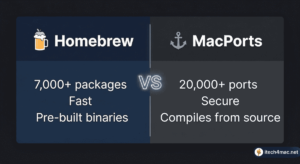
- Use MacPorts or pkgsrc as fallback package managers.
- Install tools via official binaries or App Store equivalents.
- For devs: Consider containers (Docker) or asdf for version management.
Homebrew usually stabilizes quickly after point updates—by mid-2026, Tahoe support is solid.
Questions and Answers
Q1: Will reinstalling Homebrew delete my installed packages? A: Yes, but you can reinstall them easily with brew install or a Brewfile. Data in home folders usually survives.
Q2: Is it safe to delete the Relocated Items folder? A: Yes, after backing up anything useful. It’s mostly deprecated configs Apple couldn’t place.
Q3: Why does this happen more in Tahoe 26? A: Security changes, firmlinks, and version string handling treat non-Apple files aggressively.
Q4: Can I prevent this on future updates? A: Run brew update before/after updates; avoid betas initially.
Q5: What if reinstall fails? A: Check internet, run softwareupdate –install –all, or boot to Recovery and repair disk.
Q6: Does this affect Homebrew Casks (GUI apps)? A: Yes—casks may need reinstall too (brew reinstall –cask appname).
For more help, share your brew config output!