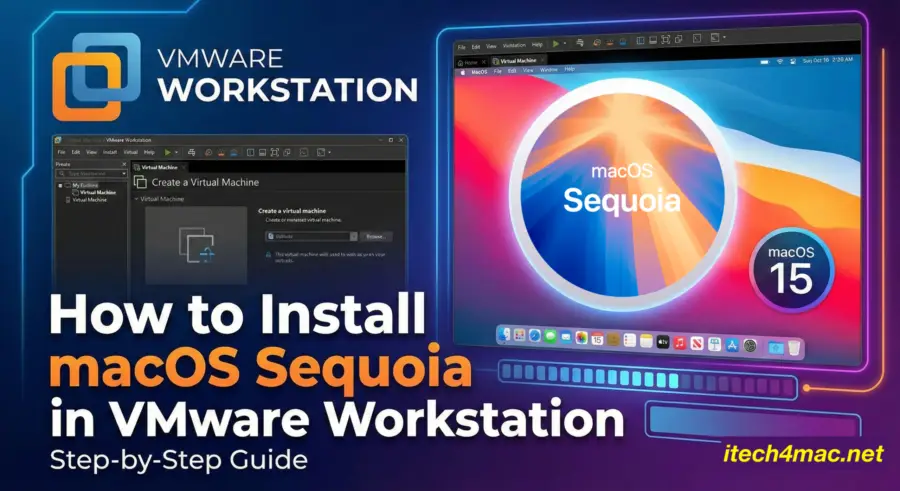
How to Install macOS Sequoia in VMware Workstation (Step-by-Step)?
Workstation and the right configuration, it’s actually very achievable. This guide walks you through the exact steps to install macOS Sequoia in VMware Workstation using a clean ISO image.
This method is ideal for:
- Testing macOS Sequoia
- Learning macOS without owning a Mac
- App and web development
Requirements
- Windows 10 / Windows 11
- VMware Workstation Pro 17
- macOS Sequoia ISO – follow the steps in (this full article link)
- At least 8 GB RAM (16 GB recommended)
- Virtualization enabled in BIOS
Step 1: Install VMware Workstation
Download VMware Workstation Pro from the official website:
🔗 https://www.vmware.com/products/workstation-pro.html
Install it normally and restart Windows.
Step 2: Unlock macOS Support in VMware
VMware blocks macOS by default on Windows. You must use VMware Unlocker.
- Download VMware Unlocker
- Run
win-install.cmdas Administrator - Restart your system
After this step, macOS will appear as a guest OS option.
Step 3: Create macOS Sequoia Virtual Machine
- Open VMware Workstation
- Click Create a New Virtual Machine
- Select Installer disc image file (ISO)
- Choose your macOS Sequoia ISO
- Guest OS:
- Apple Mac OS X
- macOS 14 or later
Step 4: Optimize VM Settings
- RAM: 8–16 GB
- CPU: 4 cores
- Storage: 80 GB (single file)
- Enable 3D acceleration
Step 5: Install macOS Sequoia
- Start the VM
- Open Disk Utility
- Format the virtual disk as:
- APFS
- GUID Partition Map
- Select Install macOS Sequoia
The installer will reboot several times. This is normal.
Step 6: First Boot Setup
- Choose region and keyboard
- Skip Apple ID (recommended)
- Create a local user
- Finish setup
🎉 macOS Sequoia is now running in VMware Workstation.
Known Limitations
- No iMessage or FaceTime
- Limited graphics acceleration
- Not suitable for heavy GPU tasks
Installing macOS Sequoia in VMware Workstation is currently the most stable solution for Windows users who want to experience macOS safely and reliably.





2 thoughts on “How to Install macOS Sequoia in VMware Workstation (Step-by-Step)?”