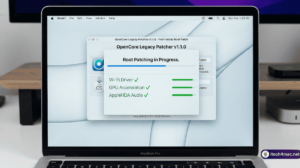
OCLP Users: Why You Should Stay on macOS Sequoia (And How to Do It Safely)
If you are running macOS Sequoia on an unsupported Mac via Open Core Legacy Patcher OCLP 2.4.1, there is a real risk: macOS may show upgrade prompts for macOS Tahoe, and installing it without a working OCLP 3.0.0 could leave your Mac in an unbootable state. Here is how to stay safe, block unwanted upgrades, and keep Sequoia running smoothly.
Why Sequoia Is the Right Choice Right Now
- Full OCLP support: OCLP 2.4.1 supports Sequoia comprehensively — Wi-Fi, GPU, audio, Bluetooth all patched.
- Security runway: Apple security updates expected through approximately autumn 2027.
- App compatibility: Nearly all modern Mac apps still support Sequoia.
- Stability: Sequoia + OCLP 2.4.1 is a mature, tested configuration with a large user community.
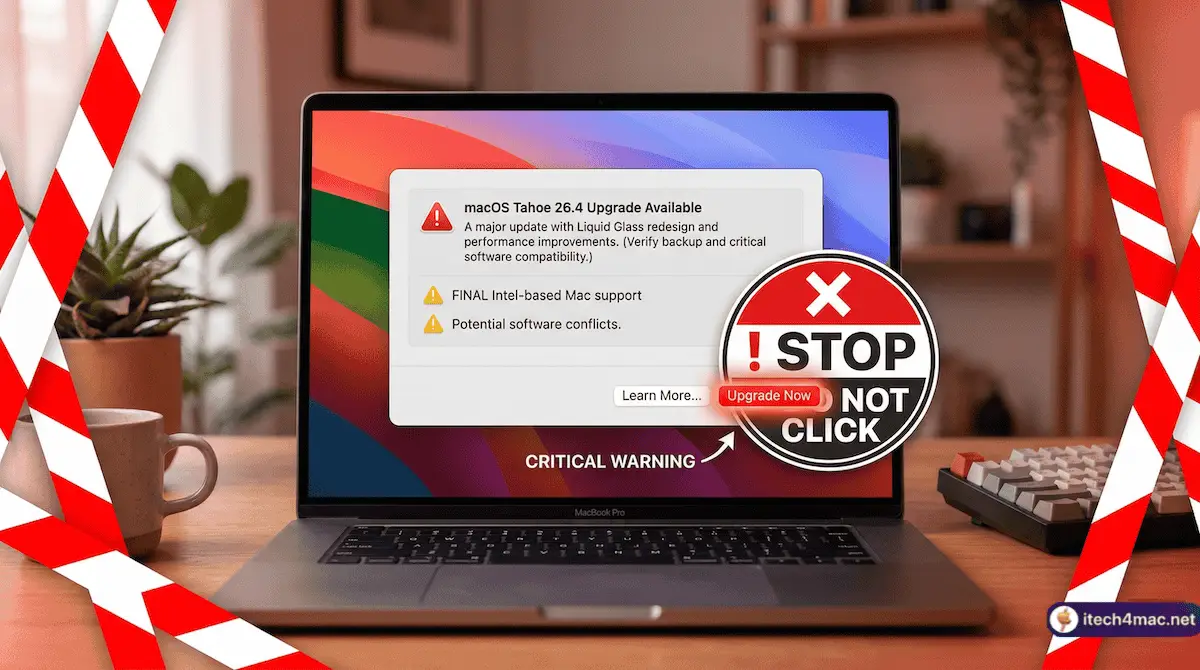
How to Block the macOS Tahoe Upgrade Prompt
macOS may show a notification in System Settings encouraging you to upgrade to macOS Tahoe. On an unsupported Mac running OCLP, clicking Upgrade could download a Tahoe installer that OCLP cannot yet patch. Use these methods to block it:
Method 1: Use Terminal to Defer Major Updates
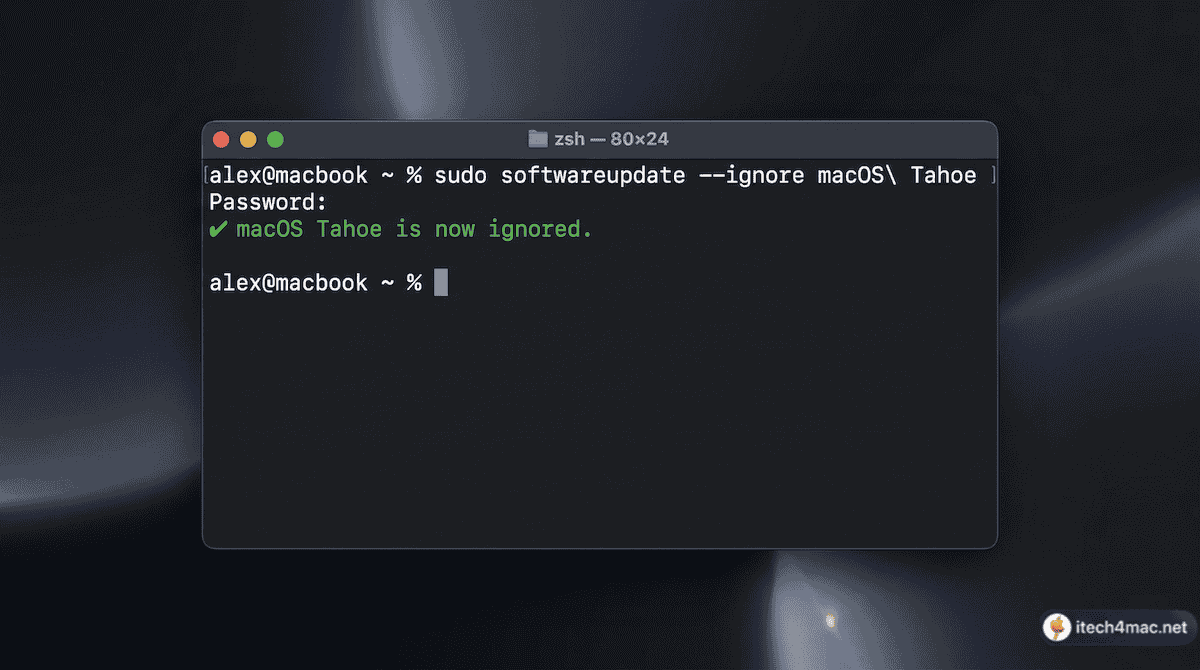
Open Terminal and enter:
sudo softwareupdate --ignore "macOS Tahoe"
This tells macOS to exclude macOS Tahoe from the suggested updates list.
Method 2: Disable Automatic Update Checks
- Open System Settings → General → Software Update
- Click the ⓘ icon next to Automatic Updates
- Disable “Download new updates when available”
- Disable “Install macOS updates”
You can still manually check for and install Sequoia security updates – only the automatic major version upgrade is blocked.
Method 3: Use a Configuration Profile (Advanced)
System administrators can deploy a configuration profile to restrict major macOS upgrades. This is more robust for managed environments but requires installing a profile file.
How to Keep Sequoia Updated Safely
While blocking the Tahoe upgrade, you should still install Sequoia security updates. These are separate from the major version upgrade and are important for security. After each security update:
- Allow the update to install normally
- Reboot into macOS
- Open OCLP and run Post-Install Root Patch
- Reboot again
- Verify Wi-Fi, audio, and GPU acceleration are working
When Is It Safe to Upgrade to Tahoe?
Only upgrade to macOS Tahoe when all three conditions are met:
- ✅ OCLP 3.0.0 stable has been officially released on GitHub
- ✅ Your specific Mac model is confirmed supported in the release notes
- ✅ You have a full Time Machine backup before proceeding
Do not act on YouTube videos or forum posts claiming Tahoe works via unofficial builds on your daily-driver machine.