How to Clear Cache and System Data on iPhone & iPad (iOS) to Free Up Storage
Running out of storage on your iPhone or iPad is one of the most common iOS frustrations. Even after deleting apps, photos, or videos, you may notice that “System Data” or “Other” still takes up a huge amount of space.
In this beginner-friendly guide, you’ll learn how to clear cache and system data on iOS safely, without risking your data or damaging your device. All methods work on modern iOS versions and older ones alike.
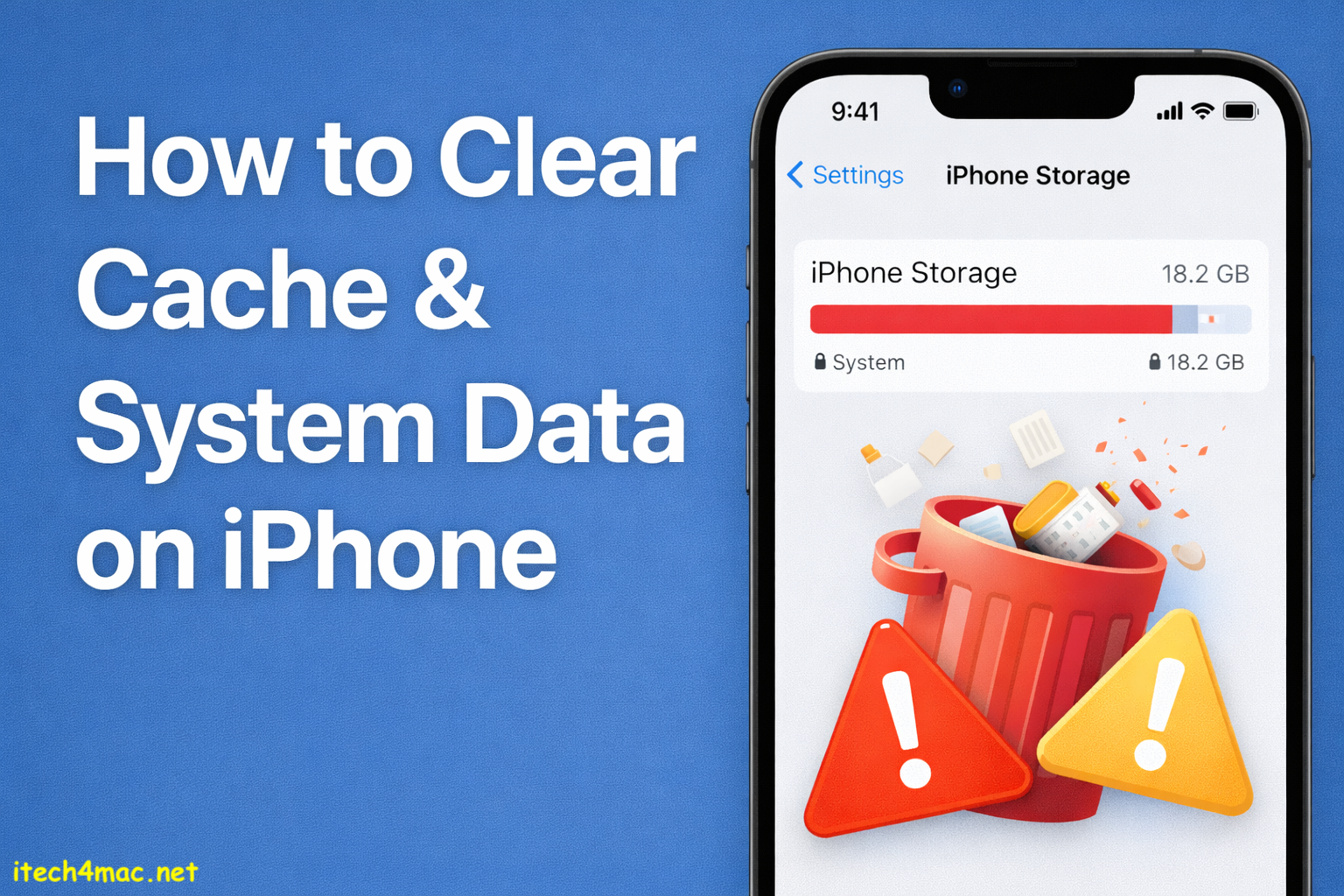
What Is Cache and System Data on iOS?
Before clearing anything, it helps to understand what you’re dealing with.
🔹 Cache Data
Cache consists of temporary files created by apps and websites to speed things up. Over time, these files can grow excessively.
Examples:
- Safari website data
- Social media app cache
- Streaming app temporary files
🔹 System Data (Previously “Other”)
System Data includes:
- Logs and diagnostic files
- Siri voices and language data
- System cache
- Temporary update files
Apple doesn’t offer a single “Clear System Data” button, but you can reduce it significantly using the methods below.
How to Check Storage Usage on iOS
- Open Settings
- Go to General
- Tap iPhone Storage (or iPad Storage)
Scroll down to see:
- Apps storage
- System Data size
This helps you understand where the space is going before fixing it.
Method 1: Restart Your iPhone (Simple but Effective)
A simple restart can clear temporary system cache files.
Steps:
- Press and hold the Power button
- Slide to power off
- Wait 30 seconds
- Turn your iPhone back on
📌 This works surprisingly well for reducing System Data slightly.
Method 2: Clear Safari Cache and Website Data
Safari cache can become very large over time.
Steps:
- Open Settings
- Scroll to Safari
- Tap Clear History and Website Data
- Confirm
✅ This removes cached files without affecting saved passwords.
Method 3: Offload or Delete Heavy Apps
Apps like Instagram, TikTok, YouTube, and WhatsApp store large cache files.
Option A: Offload App (Keeps Data)
- Go to Settings → General → iPhone Storage
- Tap an app
- Choose Offload App
Option B: Delete & Reinstall (Best Cache Cleanup)
- Delete the app
- Restart the iPhone
- Reinstall from the App Store
🔹 This is one of the most effective ways to clear app cache on iOS.
Method 4: Clear Message Attachments and Media
Messages with photos and videos can silently consume gigabytes.
Steps:
- Open Settings → General → iPhone Storage
- Tap Messages
- Review:
- Photos
- Videos
- GIFs
- Delete unnecessary attachments
Method 5: Enable iOS Storage Optimization
Apple provides built-in tools to automatically manage storage.
Steps:
- Go to Settings → General → iPhone Storage
- Enable Recommendations, such as:
- Offload Unused Apps
- Optimize Photos
📌 This reduces future cache buildup.
Method 6: Update iOS to the Latest Version
System Data sometimes grows due to old system logs or failed updates.
Steps:
- Go to Settings → General → Software Update
- Install the latest iOS version
After updating, restart your device and recheck System Data size.
Method 7: Reset All Settings (Safe Option)
This clears system cache without deleting personal data.
Steps:
- Go to Settings → General → Transfer or Reset iPhone
- Tap Reset
- Choose Reset All Settings
❗ This will reset Wi-Fi passwords and preferences, but no data is lost.
Method 8: Backup & Restore (Maximum System Data Cleanup)
This is the most effective method to reduce System Data dramatically.
Steps:
- Backup your iPhone using:
- iCloud or
- Finder / iTunes on Mac or PC
- Go to Settings → General → Transfer or Reset iPhone
- Tap Erase All Content and Settings
- Restore from backup
✅ This rebuilds the system fresh and removes hidden cache files.
What You Should NOT Do
🚫 Don’t use “cleaner” apps from the App Store — iOS blocks system access
🚫 Don’t jailbreak — unsafe and unnecessary
🚫 Don’t delete system files manually — impossible and risky
How Often Should You Clear Cache on iOS?
- Light users: every 3–6 months
- Heavy app users: every 1–2 months
- After major iOS updates: recommended
Finally
While iOS doesn’t offer a one-tap solution, clearing cache and system data on iPhone is absolutely possible using the correct methods. By combining app reinstallation, Safari cleanup, system resets, and smart storage management, you can recover several gigabytes of space safely.
If your iPhone storage keeps filling up, the backup-and-restore method remains the ultimate solution.








I like this web site because so much utile material on here : D.
thank you 🙂 you are welcome anytime
It’s really very difficult in this busy life to listen news on TV, thus I
just use the web for that reason, and get the most recent news.
Hey! This is my 1st comment here so I just wanted to give a quick
shout out and say I genuinely enjoy reading through your posts.
Can you recommend any other blogs/websites/forums
that cover the same topics? Thank you so much!
I believe that is among the such a lot important information for me.
And i’m satisfied studying your article. However should statement on few normal things, The site taste is great, the articles is in reality excellent : D.
Excellent job, cheers