How to Connect PS5/PS4 Controller to iPhone for Fortnite? Set It Up
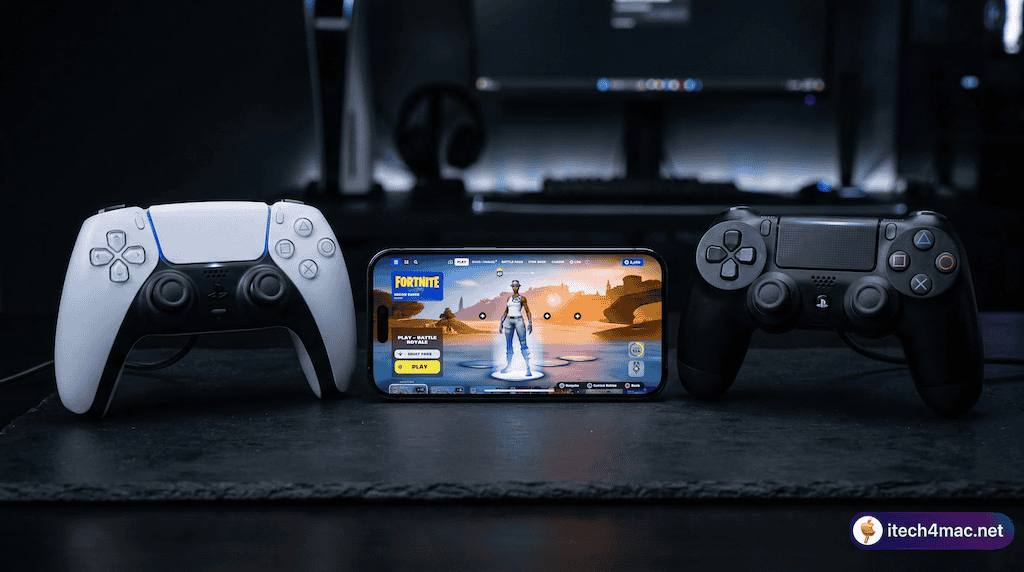
Fortnite fans love the thrill of battle royale gaming, and playing on an iPhone adds a portable twist. But can you connect a PS5 or PS4 controller to your iPhone to level up your Fortnite experience? The short answer is yes — and it’s fully supported with no adapters, no third-party apps, and no cables required.
In this guide, we’ll explain how Apple’s controller support actually works, how to pair your PS5 or PS4 controller step by step, how to configure Fortnite’s in-game settings, and how to fix the most common issues. Let’s get started!
Can You Connect a PS5 or PS4 Controller to iPhone for Fortnite?
Yes — and it works natively through iOS. Both the PS5 DualSense and PS4 DualShock 4 connect to iPhone via Bluetooth and are detected automatically by Fortnite once paired. Here’s what makes it work:
Apple added native PlayStation and Xbox controller support in iOS 13 (September 2019) through its Game Controller framework — a system-level API used by all controller-compatible App Store games. This is a common point of confusion: PS4 and PS5 controllers are not MFi (Made for iPhone) certified. MFi is Apple’s program for accessories built specifically to Apple’s specs — things like the SteelSeries Nimbus or Razer Kishi. Sony’s controllers work through Apple’s extended Game Controller framework instead, which means any game supporting MFi controllers automatically supports PlayStation and Xbox controllers too — including Fortnite.
iOS version requirements:
- PS4 DualShock 4: requires iOS 13 or later
- PS5 DualSense: requires iOS 14.5 or later
As for Fortnite on iOS — the game returned to the App Store in May 2025 following Epic’s court victory over Apple. You can now download and play the fully updated, current version directly from the App Store — no workarounds or third-party stores needed. If you’re curious about what other games are trending on iOS right now, check out our list of the 50 most downloaded iOS games from the App Store.
What You Need Before You Start
- iPhone running iOS 13+ (PS4) or iOS 14.5+ (PS5) — check in Settings → General → About
- Fortnite installed from the App Store
- A PS5 DualSense or PS4 DualShock 4 controller with sufficient battery charge
- Bluetooth turned on on your iPhone
- Controller not currently connected to a PS4 or PS5 console (you must disconnect it from the console first)
How to Connect PS5 or PS4 Controller to iPhone — Step by Step
The pairing process is nearly identical for both controllers. The only difference is the button combination used to enter pairing mode.
Step 1: Disconnect the Controller from Your Console First
If your controller was last used with a PS4 or PS5, it will try to reconnect to that console automatically and won’t appear in your iPhone’s Bluetooth list. You must break that association first:
- PS4: On the PS4 console go to Settings → Devices → Bluetooth Devices, select the controller and choose Forget Device. Or simply power off the PS4.
- PS5: On the PS5 console go to Settings → Accessories → General → Bluetooth Accessories, select the controller and choose Delete. Or simply power off the PS5.
Step 2: Put the Controller into Bluetooth Pairing Mode
Make sure the controller is fully powered off first. If it’s on, hold the PS button for about 10 seconds until the light turns off.
- PS4 DualShock 4: Hold the PS button + Share button simultaneously until the light bar flashes white rapidly.
- PS5 DualSense: Hold the PS button + Create button simultaneously until the light bar flashes blue rapidly.
The rapid flashing means the controller is broadcasting as a Bluetooth device and is ready to pair. Note: a slow pulse means it’s trying to reconnect to a console — that’s not pairing mode.
Step 3: Connect via Bluetooth on iPhone
- On your iPhone, open Settings → Bluetooth and make sure Bluetooth is On.
- Under Other Devices, wait for the controller to appear:
- PS4: “DualShock 4 Wireless Controller”
- PS5: “DualSense Wireless Controller”
- Tap the name to pair.
- The light bar will change to a solid color when connected:
- PS4 DualShock 4 → solid pink / light blue
- PS5 DualSense → solid orange
Tip: If the controller doesn’t appear after 30–40 seconds, repeat Step 2 — the pairing mode window times out after about 60 seconds.
Step 4: Open Fortnite and Configure Controls
- Launch Fortnite on your iPhone. The game will detect the controller automatically.
- Touch controls may still appear on screen — this is normal and can be reduced in settings.
- In Fortnite, go to Menu (three lines) → Settings → Controller.
- From there you can adjust:
- Look Sensitivity (horizontal and vertical — start around 45–50%)
- Aim Down Sights Sensitivity (start around 40%)
- Auto Sprint — enable this to free up your left thumb for building
- Vibration on/off
- Partial button remapping
Step 5: Start Playing
Drop into a Creative mode or bot lobby first to dial in your sensitivity before jumping into a real Battle Royale match. Use the PS button to reconnect if the controller ever disconnects mid-game. For the best experience, reduce other Bluetooth devices running nearby to minimize interference.
Default Button Layout for Fortnite on iPhone (PS4 / PS5 Controller)
Fortnite uses the standard console layout when a controller is connected to iOS:
| Action | PS4 / PS5 Button |
|---|---|
| Move | Left stick |
| Aim / Look | Right stick |
| Shoot | R2 (trigger) |
| Aim Down Sights | L2 (trigger) |
| Jump | Cross (✕) |
| Crouch / Slide | Circle (○) |
| Reload / Interact | Square (□) |
| Build Mode Toggle | Triangle (△) |
| Weapon / Item Select | D-Pad |
| Sprint toggle | L3 (left stick click) |
| Map | Touchpad click |
| Menu / Pause | Options button |
Button mapping can be partially adjusted inside Fortnite’s Controller settings if the default layout doesn’t suit your playstyle.
What Works and What Doesn’t on iPhone
✅ What works well
- All main face buttons, analog sticks, D-pad, and shoulder buttons (R1/L1, R2/L2)
- R2/L2 triggers work correctly for shooting and aiming
- Basic rumble / vibration on both controllers
- Touchpad click registers as a button press (map shortcut)
- Automatic detection by Fortnite — no setup app required
- Controller stays paired to your iPhone for future sessions
⚠️ What doesn’t work on iOS
- PS5 Adaptive Triggers: Variable resistance in R2/L2 (a PS5 console exclusive feature) — not supported on iOS. Triggers behave as standard digital inputs.
- PS5 Advanced Haptics: The DualSense’s high-definition haptic motor — not supported. Only standard rumble works.
- Touchpad swipe gestures: Swiping the touchpad doesn’t map to any action. Only the click registers.
- Motion / gyroscope aiming: Not supported in Fortnite on iOS.
- Touch overlays: On-screen touch buttons still appear but can be set to 0% opacity in Fortnite’s HUD settings.
PS5 vs PS4 Controller on iPhone — Which Should You Use?
If you own both, the PS5 DualSense is the better everyday choice — newer build quality and longer battery life. However, on iOS you won’t notice any difference in actual Fortnite gameplay since the adaptive triggers and haptics don’t function. Both controllers deliver identical inputs inside the game.
If you only have a PS4 DualShock 4, it works just as well — and its iOS 13 minimum requirement means it’s compatible with older iPhones that can’t update to iOS 14.5. Whichever controller you use, both are far more precise than touch controls for building and aiming in Fortnite.
Troubleshooting: PS5 / PS4 Controller Not Working with iPhone
Controller doesn’t appear in Bluetooth list
- Check you’re pressing the correct button combination: PS + Share (PS4) or PS + Create (PS5).
- The light bar must be rapidly flashing, not slowly pulsing. A slow pulse means it’s trying to reconnect to a console — you need to forget the device on the console first (Step 1).
- Restart Bluetooth on your iPhone: toggle it off and back on in Settings.
- Move closer to your iPhone — keep it within 1–2 meters during initial pairing.
Controller connects but Fortnite doesn’t respond
- Force close Fortnite and relaunch it with the controller already connected.
- Confirm your iPhone meets the iOS version requirement: iOS 13+ (PS4) or iOS 14.5+ (PS5).
- Make sure Fortnite is fully updated from the App Store.
- Go to Fortnite Settings → Controller and confirm the controller is listed and active there.
Controller keeps disconnecting
- Turn off other nearby Bluetooth devices (AirPods, speakers) to reduce interference.
- Stay within 5–8 meters of your iPhone during play.
- Check controller battery — low battery causes unstable Bluetooth. Charge before long sessions.
- Avoid thick metal phone cases, which can reduce Bluetooth signal range.
Input lag during gameplay
- Close background apps on your iPhone to free up processor resources.
- Switch from mobile data to Wi-Fi for lower in-game latency.
- Disable Low Power Mode (Settings → Battery) — it throttles CPU performance and can increase input delay.
- Turn off Wi-Fi scanning and unnecessary location services while gaming.
Bonus Tips to Get the Best Fortnite Experience
- Use a phone mount / clip: Clip your iPhone onto the controller using a universal phone grip (like the PowerA MOGA XP5-X+ or any generic clip mount). This turns your setup into a handheld console — far more comfortable for long sessions than holding phone and controller separately.
- Enable Auto Sprint: In Fortnite’s controller settings, turn on Auto Sprint so your character runs automatically when you push the left stick forward. This frees up a button press for building and editing.
- Clean up touch overlays: Go to Fortnite → Settings → HUD → HUD Options and set unused touch controls to 0% opacity to give yourself a cleaner screen view.
- Keep the controller charged: PS5 and PS4 controllers drain faster over Bluetooth. Keep a USB cable handy or use a power bank for marathon sessions.
- Practice in Creative first: Before Battle Royale, spend 15–20 minutes in a Creative map practicing building and editing. Controller aiming on a smaller screen takes a real adjustment period.
- Try other controller-supported games: Once your controller is paired, it works across all compatible iOS games — Call of Duty Mobile, PUBG Mobile, Minecraft, Stardew Valley, and all Apple Arcade titles (Apple Arcade games are required by Apple to support controllers).
Frequently Asked Questions
Does Fortnite on iPhone support all PS5/PS4 controller buttons?
Most buttons work correctly. The exceptions are PS5-exclusive features: adaptive triggers, advanced haptics, and touchpad swipe gestures are not supported on iOS. All face buttons, analog sticks, triggers (R2/L2), shoulder buttons (R1/L1), and D-pad work as expected.
Is Fortnite still available on iPhone in 2025?
Yes. Fortnite returned to the US App Store in May 2025 following Epic’s court ruling against Apple. It’s now fully updated and available to download for free from the App Store on iPhone and iPad worldwide.
Do I need a special app or adapter to connect a PS5/PS4 controller to iPhone?
No. Pairing happens through standard Bluetooth in iPhone Settings — no adapter, dongle, or third-party app required. Apple’s Game Controller framework handles everything natively since iOS 13.
Can I use multiple controllers on iPhone for multiplayer?
iPhones support up to four simultaneous Bluetooth controllers through Apple’s Game Controller framework. However, Fortnite on iPhone is a solo experience and doesn’t offer local split-screen multiplayer, so multiple controllers won’t add local co-op in Fortnite itself. For other multi-controller games, your setup will work fine.
Why is my controller light pulsing slowly and not appearing on iPhone?
A slow pulse means the controller is trying to reconnect to your PlayStation console — that’s not pairing mode. To enter pairing mode you need a rapid flash, triggered by holding PS + Share (PS4) or PS + Create (PS5) from a fully powered-off state. Make sure the controller is completely off before pressing the combination, and ensure the console is also off or the controller has been forgotten in the console’s Bluetooth settings.
Can I use this controller with other iPhone games too?
Absolutely — once paired, your PS5 or PS4 controller works with any controller-compatible game on the App Store. Popular options include Call of Duty Mobile, PUBG Mobile, Minecraft, Stardew Valley, Alto’s Odyssey, and the full Apple Arcade library. Check out our full list of the top 50 downloaded iOS games for more controller-compatible titles.
Connecting a PS5 or PS4 controller to your iPhone genuinely transforms your Fortnite experience — the precision of analog sticks over touch controls makes a real, immediate difference in aiming, building, and movement. Setup takes under two minutes, and once paired your controller stays connected for all future sessions. While iOS doesn’t support the PS5’s adaptive triggers or haptics, everything you actually need for competitive play works perfectly. Grab your controller, dive into the battle bus, and dominate your next match!
Have questions or ran into an issue not covered here? Leave a comment below — we read and respond to every one. And if you found this guide useful, check out our other iPhone tutorials for more tips on getting the most out of your device.