How to check Blocked Voicemails, Messages, and Numbers on iPhone in 4 Steps
We’ve all been there—blocking a number to stop unwanted calls or messages, only to wonder later if they left a voicemail or tried reaching out. If you’re using an iPhone, Apple makes it pretty simple to check your blocked voicemails, numbers, and messages.
In this guide, we’ll walk you through four easy steps to uncover this hidden info and manage your blocked contacts like a pro. Let’s dive in!
Why Check Blocked Data?
When you block a contact on your iPhone, their calls, messages, and FaceTime attempts are silenced—but they can still leave voicemails, and their messages don’t just disappear. Knowing how to find this data can help you stay on top of things, whether you’re dealing with a persistent caller or just curious about what you’ve missed.
Here’s how to find blocked voicemails, numbers, and messages on your iPhone in a few quick steps.
Step 1: Check Your Blocked Voicemail Messages
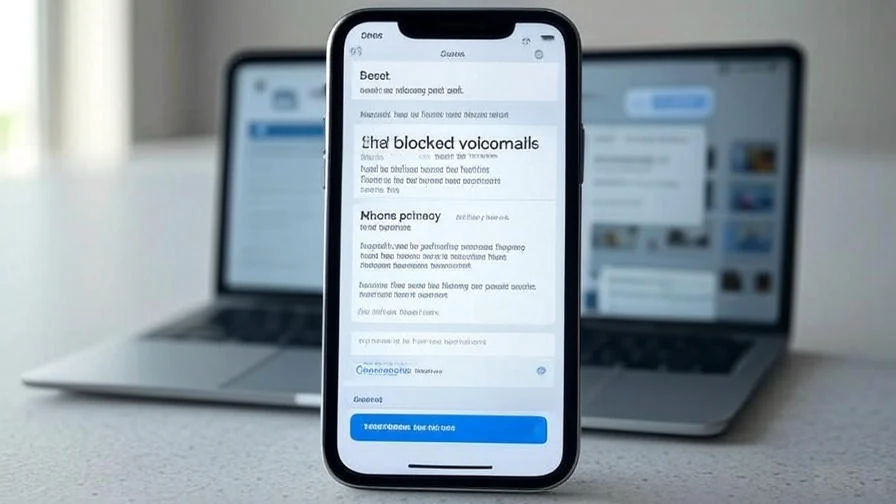
Blocked callers can still leave voicemails, but Apple tucks them away in a special folder so they don’t clutter your main inbox.
- Open the Phone app on your iPhone.
- Tap the Voicemail tab at the bottom right.
- Scroll down to the bottom of the list and look for a section labeled Blocked Messages.
- Tap it to see any voicemails left by blocked numbers. You can listen to them, delete them, or even unblock the caller if you change your mind.
If you don’t see the Blocked Messages section, it means no blocked callers have left voicemails yet.
Step 2: Find Your Blocked Numbers List
Want to see which numbers you’ve blocked? Your iPhone keeps a handy list of all blocked contacts.
- Go to Settings > Phone.
- Scroll down and tap Blocked Contacts.
- You’ll see a list of all the numbers and contacts you’ve blocked.
From here, you can swipe left on any number to unblock it or tap Edit in the top-right corner to remove multiple contacts at once.
Step 3: Look for Blocked Messages in the Messages App
Blocked messages don’t show up in your regular inbox, but you can still access them if you know where to look.
- Open the Messages app.
- Tap Filters in the top-left corner (you might need to tap the back arrow if you’re already in a conversation).
- Look for a folder labeled Blocked or Unknown Senders.
- Tap it to view messages from blocked contacts.
Note: If you don’t see a Blocked folder, it might be because you haven’t received any messages from blocked numbers, or your settings are filtering them differently.
Step 4: Check Blocked Messages in Other Apps (If Applicable)
If you use apps like iMessage or third-party messaging apps (e.g., WhatsApp), blocked messages might be handled differently.
- For iMessage: Blocked iMessage texts will also appear in the Blocked or Unknown Senders folder in the Messages app, as described in Step 3.
- For third-party apps: Open the app (like WhatsApp or Telegram) and check its settings or blocked contacts section. For example, in WhatsApp, go to Settings > Privacy > Blocked to see blocked contacts and their messages.
If you’re unsure, search the app’s help section for “blocked messages” to find app-specific instructions.
Bonus Tips for Managing Blocked Contacts
- Unblock if needed: If you change your mind, you can unblock a number from the Blocked Contacts list in Settings> Phone.
- Silence unknown callers: Go to Settings > Phone > Silence Unknown Callers to automatically send unknown numbers to voicemail, keeping your phone peaceful.
- Check your carrier: Some carriers (like Verizon or AT&T) offer additional voicemail blocking features. Contact your provider or check their app for more options.
Frequently Asked Questions
Q: Can I recover deleted voicemails from blocked numbers?
A: If you’ve deleted a voicemail, it might still be in the Deleted Messages folder in the Voicemail tab. Tap it, and you can recover voicemails within 30 days.
Q: Will blocked contacts know I’ve viewed their messages?
A: No, blocked contacts won’t get any notification if you view their messages or voicemails.
Q: Why don’t I see a Blocked Messages folder?
A: If no blocked contacts have left messages or voicemails, the folder won’t appear. Also, check your iOS version—update to the latest version for the best features.
Finding blocked voicemails, numbers, and messages on your iPhone is easier than you might think. With just a few taps, you can uncover hidden voicemails, review your blocked contacts, and manage everything from the Messages app. Whether you’re decluttering your phone or keeping tabs on blocked callers, these four steps will help you stay in control.
Got more questions about managing your iPhone’s privacy settings? Let us know in the comments—we’re here to help!