How to PERMANENTLY Kill Microsoft AutoUpdate Pop-up on Mac
You are in the middle of a Zoom call, or maybe you are finally in “the zone” writing that report, and then—BAM.
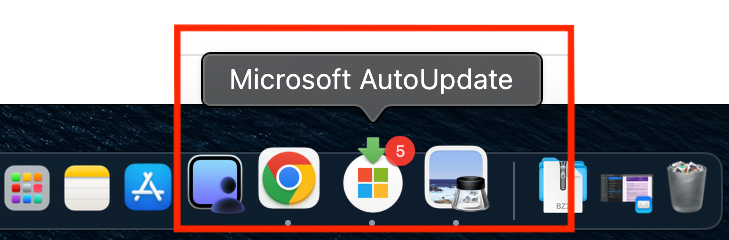
A window pops up on your dock. It’s jumping up and down. It demands attention. Is it a virus? Is your Mac dying? No. It’s just Microsoft AutoUpdate (MAU) telling you that Excel has a minor bug fix. Again.
You close it. It comes back tomorrow. You update the app. It comes back next week.
Let’s be real: The Microsoft AutoUpdate tool is the “mosquito” of the macOS ecosystem. It is persistent, annoying, and somehow finds the worst possible time to buzz in your ear.
If you are tired of playing Whack-A-Mole with this window, I have good news. You can shut it up. Here are the three ways to handle it, ranked from “Polite” to “The Nuclear Option.”

How to PERMANENTLY Kill the Microsoft AutoUpdate Pop-up on Mac (3 Methods)
Level 1: The “Polite” Way (Check the Settings)
Try this first. It doesn’t always stick, but it’s the easiest.
Microsoft actually claims you can turn this off in the settings. Sometimes this works for a few months before an update resets it, but it’s worth a shot.
- Open any Office app (Word, Excel, etc.).
- In the top menu bar, click Help > Check for Updates.
- This opens the dreaded Microsoft AutoUpdate window.
- Uncheck the box that says “Automatically keep Microsoft Apps up to date.”
- Click Turn Off.
The Catch: You will now have to manually check for updates. Also, Microsoft has a nasty habit of re-checking this box whenever you do manually update. If this doesn’t work, move to Level 2.
Level 2: The “Pro” Way (Permissions Lock)
This is my favorite method. We aren’t deleting the app; we are just taking away its house keys.
This method uses the Finder to tell macOS: “This application exists, but it is not allowed to run.” It stops the pop-up without breaking your Word or Excel installation.
- Open Finder.
- In the top menu, click Go > Go to Folder… (or hit
Cmd + Shift + G). - Paste this path and hit Enter:
/Library/Application Support/Microsoft/MAU2.0 - You will see an app inside called Microsoft AutoUpdate.app.
- Right-click it and choose Get Info.
- Look at the Permissions section at the bottom.
- Click the Lock icon 🔒 to make changes (you’ll need your Mac password).
- Change the privilege for “Everyone,” “Staff,” and “System” to No Access.
What just happened? The app is still there, but the operating system can no longer execute it. The pop-up physically cannot launch. Silence at last.
Level 3: The “Nuclear Option” (Delete It)
Warning: This breaks updates entirely. Only do this if you really, really hate that pop-up.
If you are the type of person who updates Office once a year (or never), you can just delete the updater entirely. It’s not essential for Word to run.
- Open Finder.
- Hit
Cmd + Shift + Gand go to:/Library/Application Support/Microsoft/MAU2.0 - Drag Microsoft AutoUpdate.app straight into the Trash.
- Empty the Trash.
Pro Tip: If you do this, you will never get security updates. If you ever need to update Excel in the future, you’ll likely have to re-download the installer from the Microsoft website.
Bonus: The “Ghost” in the LaunchAgents
Sometimes, even after you delete the app, the Mac tries to launch it and gives you an error because it can’t find the file. To stop the Mac from even looking for it:
- Go to this folder:
/Library/LaunchAgents - Look for a file named
com.microsoft.update.agent.plist. - Delete it.
Final Thoughts
It is ridiculous that we have to jump through hoops just to stop a window from stealing focus, but that’s modern software for you.
Personally, I use Level 2. It keeps the file there just in case I actually need to update something later (I just reverse the permissions), but it stops the daily harassment.
Enjoy your peace and quiet. 🤫





This is the best text I’ve read in years. Literally laughing non-stop, so much attention to details. AND, it works. Amazing! Thanks Sherif for making my life better in so many levels hahaha
thanks bro, your are welcome anytime
The ‘Nuclear Option’ worked for me. MAU gone!! 👍🏽🤣
Let’s hope that The Orange Menace doesn’t try his NO….
Thanks.
thanks Nathanya, I am happy to read that you find the article helpful 🙂 you are welcome anytime