How to Factory Reset ANY Mac Before Selling It (The “Don’t Get Hacked” Guide)
So, you finally upgraded. You bought that shiny new M4 MacBook Air, and now your old reliable Intel MacBook Pro is sitting on your desk, waiting to be sold on eBay or handed down to your cousin.
But there is a problem. That computer knows everything about you. Your passwords, your credit cards, your embarrassing search history – it’s all in there.
Simply dragging your files to the Trash isn’t enough. You need to nuke it.
Whether you have a modern Apple Silicon machine or an aging Intel workhorse, here is the exact, step-by-step method to wipe your Mac so clean that even the FBI couldn’t find your old selfies.
Scenario A: The “Easy Button” (macOS Monterey & Later)
Works for: All Apple Silicon Macs (M1/M2/M3/M4) and Intel Macs with T2 Chip running macOS Monterey or newer.
Apple finally realized that wiping a Mac used to be a nightmare, so they copied the iPhone. Now, there is literally a button called “Erase All Content and Settings.”
- Back up your data. (Seriously. Do it now. Time Machine or external drive.)
- Open System Settings (or System Preferences).
- For macOS Ventura/Sonoma/Tahoe: Go to General > Transfer or Reset > Erase All Content and Settings.
- For macOS Monterey: Click “System Preferences” in the top menu bar (next to the Apple logo) > Erase All Content and Settings.
- Type your admin password.
- The Mac will show you a “Summary” of what will be deleted (Touch ID, Apple Wallet, etc.). Click Continue.
- The screen will go black, the Apple logo will appear, and the progress bar will do its thing.
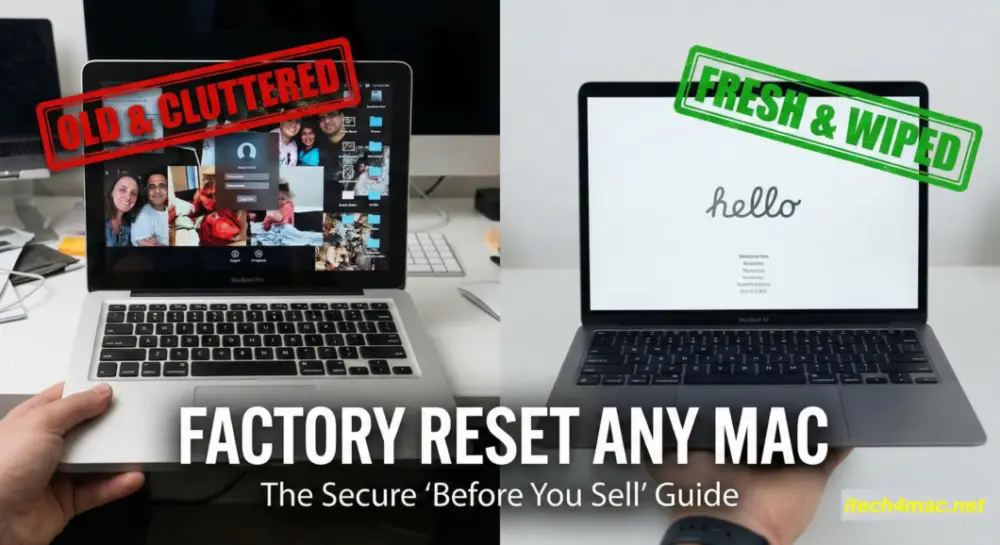
- The Result: Your Mac will reboot to the “Hello” screen. Turn it off. Do not set it up. It is now ready for the new owner.
Scenario B: The “Old School” Method (Intel Macs without T2)
Works for: Older Macs (2017 and earlier) or Macs running older macOS versions.
If you don’t have the “Erase All” button, you have to do it the hard way: Recovery Mode.
Step 1: Sign Out of Everything (Crucial!)
Before you wipe the drive, you must disconnect your digital soul from the hardware.
- Sign out of iCloud: System Preferences > Apple ID > Overview > Sign Out. (If you skip this, the new owner might get locked out by “Activation Lock.”)
- Sign out of iMessage: Open Messages app > Preferences > iMessage > Sign Out.
- Unpair Bluetooth devices: If you are giving the Mac to someone in the same house, unpair your mouse/keyboard or they will keep randomly connecting to the old computer.
Step 2: The Wipe (Disk Utility)
- Restart your Mac.
- Immediately hold Command + R until you see the Apple logo.
- You will enter macOS Recovery.
- Select Disk Utility and click Continue.
- Click View > Show All Devices.
- Select the absolute top-level drive (usually called “Macintosh HD” or “Apple SSD”).
- Click Erase.
- Name: Macintosh HD
- Format: APFS (or Mac OS Extended for very old Macs)
- Scheme: GUID Partition Map
- Click Erase Group (or just Erase).
- Wait for it to finish, then quit Disk Utility.
Step 3: Reinstall macOS
You now have a blank computer with no operating system. It’s useless. You need to put a fresh copy of macOS back on it.
- Still in Recovery Mode, select Reinstall macOS.
- Follow the prompts.
- The Critical Step: When the installation finishes and the Mac restarts to the “Welcome / Select Country” screen, press Command + Q and Shut Down.
- Do not create a user account.
- Do not connect to WiFi.
- Let the new owner have the joy of “unboxing” it themselves.
The “Paranoid” Check
“Did it really work? Is my data gone?”
If you see the “Hello” screen in multiple languages when you turn it on, you are safe. The encryption keys have been destroyed. Your data is technically mathematical noise now.
Go ahead and sell it. And use that money to buy something nice.
Stuck in Recovery Mode? Or did the “Erase” button grey out? Drop a comment below and I’ll help you troubleshoot.