How to Download Minecraft on Old and New MacBooks ?
Minecraft remains one of the most popular games in 2025, and you can download it on both old and new Macs with ease. However, Macs only support the Java Edition, and compatibility depends on your macOS version and hardware. This guide walks you through the process, ensuring you can enjoy Minecraft whether you’re using an older Intel-based Mac or a newer Apple silicon model.
System Requirements for Minecraft on to work on Mac
Minecraft Java Edition has modest requirements, but older Macs may struggle with performance. Here’s what you need:
- macOS Version:
- Minimum: macOS 10.14.4 (Mojave) or later. Older versions like 10.7 or 10.8 won’t work, as noted in discussions on Apple Community forums where users reported needing at least 10.8.
- Recommended: macOS 12 (Monterey) or later for optimal performance, especially on Apple silicon Macs (M1, M2, etc.), which gained native ARM64 support in the 2022 Wild Update.
- Processor:
- Minimum: Intel Core i5 (2013 or later) or any Apple silicon chip (M1 or newer).
- Older Macs (pre-2013) may run the game but expect lag, as benchmark tests on Mac Gamer HQ showed a 2013 MacBook Pro achieving 56.7 FPS at low settings.
- RAM: At least 4GB (8GB recommended for smoother gameplay).
- Storage: Approximately 2GB for the game and updates.
- Internet: Stable connection for downloading and multiplayer.
If your Mac is too old (e.g., running macOS 10.7), you’ll need to upgrade the OS via the App Store (current version available is macOS Sequoia as of May 2025). Alternatively, consider a newer Mac if upgrading isn’t possible.
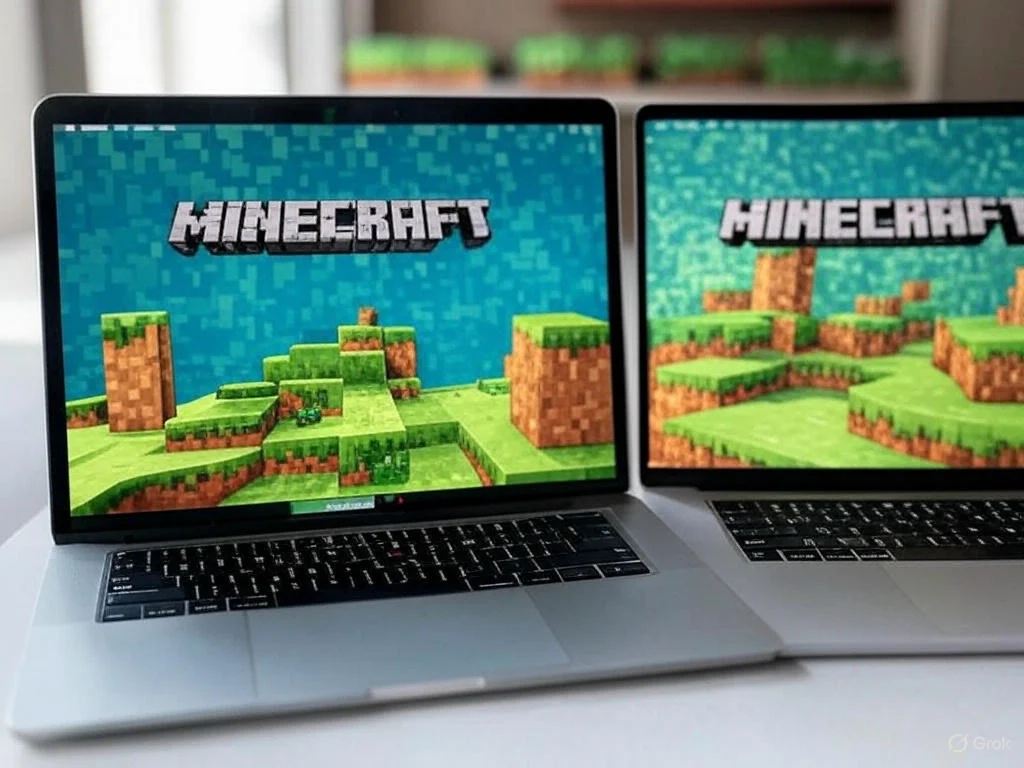
Step-by-Step Guide to Download Minecraft on Any Mac
Step 1: Create or Log In to a Microsoft Account
Minecraft requires a Microsoft account to purchase and play.
- Visit the official Minecraft website (minecraft.net).
- Click Log In at the top.
- Select Sign up for free! if you don’t have an account, or log in with your existing Microsoft account.
- Follow the prompts to create a Gamertag (your public Xbox community name).
Step 2: Purchase Minecraft Java Edition
Macs only support the Java Edition, not Bedrock (unless using virtualization, which is more complex).
- On the Minecraft website, click Get Minecraft.
- Choose Computer, then select Minecraft: Java & Bedrock Edition.
- Note: The bundle includes both editions, but only the Java Edition works natively on Macs. Avoid the Deluxe Collection, as its extras are Bedrock-only and won’t work on macOS.
- Click Buy for the Base Game (priced at $29.99 as of 2025).
- Complete the payment process using your preferred method.
Step 3: Download the Minecraft Launcher
- After purchase, click Download on the website, or go to the download page and select Download for macOS.
- The Minecraft.dmg file will download to your Downloads folder.
Step 4: Install Minecraft
- Open the Minecraft.dmg file from your Downloads folder.
- Drag the Minecraft app icon into your Applications folder as prompted.
- If you’re on an older Mac and see a security warning (Minecraft is a third-party app), go to System Settings > Privacy & Security > General, and click Open Anyway to allow the app.
Step 5: Launch and Log In
- Open Finder, go to Applications, and double-click Minecraft.
- The Minecraft Launcher will open and may download additional updates (ensure you have an internet connection).
- Log in with your Microsoft account.
- Click the green Play button to start the game.
Step 6: Check for Compatibility on Old Macs
- If you’re on an older Mac (e.g., pre-2013 Intel models), the game may run but could be laggy. Lower the graphics settings (e.g., render distance, shadows off) to improve performance.
- Older versions of Minecraft can be accessed via the launcher if your Mac struggles with the latest updates. Some users on X have noted that you can download older versions directly in the launcher by selecting them under the “Installations” tab.
Special Notes for Old Macs
- Java Dependency: Since 2017, Minecraft no longer requires a separate Java installation, as the launcher includes its own optimized Java version. If prompted to install Java, you’re using an outdated installer—uninstall it and download the latest launcher from the official site.
- Performance: Older Macs (e.g., 2010–2013 models) may achieve 30–45 FPS at low settings, as per Mac Gamer HQ benchmarks. This is playable but not ideal for busy servers or high render distances.
- OS Upgrades: If your Mac can’t run macOS 10.14.4 or later, you won’t be able to install the latest Minecraft version. Check Apple’s support page for OS upgrade eligibility.
Special Notes for New Macs (Apple Silicon)
- Native Support: Since the 2022 Wild Update, Minecraft runs natively on Apple silicon (M1, M2, M3, etc.), offering better performance and efficiency.
- Rosetta: If you’re using an older Minecraft mod or version, macOS may use Rosetta to run Intel-based code, which still performs well on M-series chips.
- Performance: New Macs easily achieve 60+ FPS even at higher settings, making them ideal for modding and multiplayer servers.
Tips for a Smooth Experience
- Storage: Ensure you have at least 2GB free for the game and future updates. Use Disk Utility to check available space.
- Trial Option: Unsure about buying? Download the free trial from the Minecraft website (under the demo section) to play for 1 hour and 40 minutes.
- Clean Your Mac: On older Macs, clear junk files to improve performance. Tools like CleanMyMac can help remove old caches and optimize your system.
- Mods: Minecraft Java Edition on Mac supports mods. Download them via trusted sites like CurseForge, and install them by placing mod files in the “mods” folder (accessible via Finder > Go > Go to Folder > ~/Library/Application Support/minecraft/mods).
Troubleshooting Common Issues
- Game Won’t Launch: If the launcher fails to open, ensure your macOS version meets the minimum requirements. On older Macs, check for pending macOS updates in the App Store.
- Lag on Old Macs: Reduce render distance and disable fancy graphics in the game settings. Close other apps to free up RAM.
- Security Warning: If macOS blocks the app, manually allow it in Privacy & Security settings as described earlier.
- Java Prompt: Older installers may ask for Java. Uninstall them, download the latest launcher from minecraft.net, and try again.





3 thoughts on “How to Download Minecraft on Old and New MacBooks ?”