How to Share Files from macOS Tahoe to Windows PCs – Enable SMB and Troubleshoot Common Errors
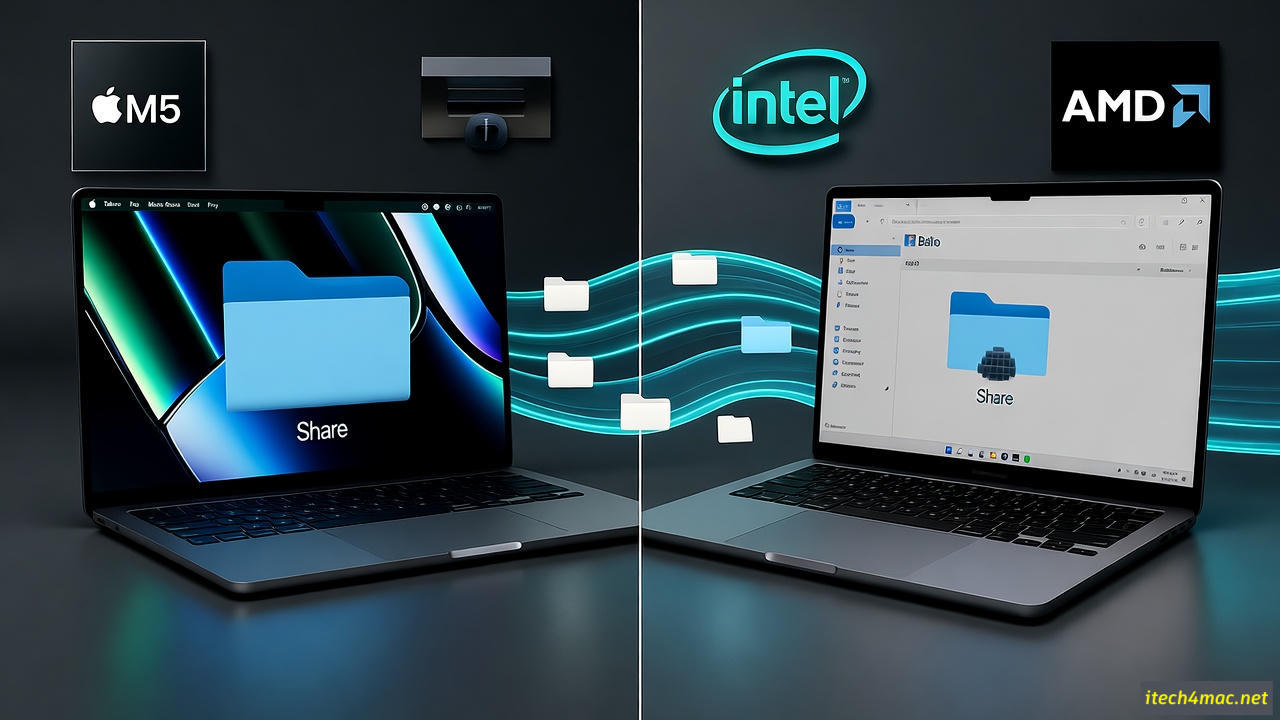
macOS Tahoe (macOS 15) and Windows 11 dominate hybrid work environments, but cross-platform file sharing remains a pain point. Whether you’re transferring 4K video projects, design assets, or simple documents, SMB (Server Message Block) is Apple’s built-in protocol for seamless Mac-to-Windows integration.
Yet, users report “Connection refused,” “Permission denied,” or “The network path was not found” errors daily. This comprehensive 2025 guide walks you through enabling SMB on macOS Tahoe, mapping drives on Windows, and fixing the top 10 SMB errors with GUI and Terminal solutions.
Tested on macOS Tahoe 15.2, Windows 11 24H2, and mixed M4/M5 + Intel/AMD networks.
Why Use SMB for macOS-to-Windows File Sharing?
- Native support in both OSes — no third-party apps needed.
- Fast LAN transfers (up to 125 MB/s on Wi-Fi 7, 300+ MB/s on Thunderbolt networking).
- User-level permissions via macOS Accounts and Windows credentials.
- Encrypted by default (SMB 3.1.1 in Tahoe).
Pro Tip: Avoid cloud sync (iCloud, OneDrive) for large files — SMB over local network is 10x faster.
Step 1: Enable File Sharing on macOS Tahoe
- Open System Settings > General > Sharing.
- Toggle File Sharing → ON.
- Click the info (i) button next to File Sharing.
- Click + under Shared Folders → Select your folder (e.g., ~/Projects).
- Set permissions:
- Everyone: Read Only
- Your User: Read & Write
- Add Windows User (see below)
Security Note: Never enable Guest Access on production networks.
Step 2: Add Windows User to macOS Sharing
Windows needs valid credentials to connect.
- On Mac: System Settings > Users & Groups → Click + → Create a Sharing Only user.
- Full Name: windowsuser
- Account Name: winshare
- Password: StrongP@ss2025
- Back in Sharing > File Sharing > Options:
- Check Share files and folders using SMB
- Enable the new winshare account
Terminal Alternative (Faster):
bash
sudo sysadminctl -addUser winshare -fullName "Windows Share" -password "StrongP@ss2025" -admin no
sudo dseditgroup -o edit -a winshare -t user com.apple.access_smb
Step 3: Connect from Windows 11/10
- Open File Explorer → Address bar → Type: text
\\192.168.1.100\Projects(Replace IP with your Mac’s — find it in System Settings > Network > Wi-Fi > Details) - Enter credentials:
- Username: MACBOOKPRO\winshare (or just winshare)
- Password: StrongP@ss2025
- Check Remember my credentials → OK.
Map as Network Drive (Z:) Right-click This PC → Map network drive → Folder: \\192.168.1.100\Projects → Finish.
Top 10 SMB Errors & Fixes (2025)
| Error | Cause | Fix |
|---|---|---|
| “Windows cannot access \MAC” | Firewall or SMB not running | → Mac: System Settings > Network > Firewall > Options → Allow File Sharing (SMB) |
| “The network path was not found” | Wrong IP or Bonjour not resolving | → Use IP instead of hostname → Terminal: smbutil lookup MACBOOKPRO |
| “Permission denied” / “Logon failure” | Wrong credentials or SMB1 fallback | → Use MACBOOKPRO\winshare → Windows: net use * /delete then reconnect |
| “The specified network password is incorrect” | Password mismatch or NTLMv2 | → Recreate sharing user → Microsoft KB5008380 |
| SMB connection timeout | Wi-Fi sleep or power saving | → Mac: System Settings > Battery > Options → Uncheck Low Power Mode |
| “The account is disabled” | Sharing user not in SMB group | → sudo dseditgroup -o edit -a winshare -t user com.apple.access_smb |
| Slow transfer (<10 MB/s) | SMB 2 fallback or encryption | → Force SMB3: Edit /etc/nsmb.conf [default]\nsigning_required=no\nprotocol_vers_map=6 |
| “You do not have permission to access” | Folder ACL mismatch | → Right-click folder → Get Info → Sharing & Permissions → Add winshare with R&W |
| Windows sees Mac but no folders | No shared folders configured | → Re-add folder in Sharing > File Sharing |
| “The network name cannot be found” | mDNSResponder crash | → Terminal: sudo killall mDNSResponder |
Advanced: Mount Mac Drive on Windows with Full Read/Write
Use Paragon NTFS for Mac or MacDrive for write access to APFS/HFS+ drives over network.
Or, format shared drive as exFAT (readable/writable on both):
bash
# On Mac Terminal
diskutil eraseDisk exFAT SHAREDDRIVE GPT /dev/diskX
Bonus: Automate SMB Connection on Windows Startup
Create connect-mac.bat:
bat
@echo off
net use Z: "\\192.168.1.100\Projects" /user:MACBOOKPRO\winshare StrongP@ss2025 /persistent:yes
Place in Startup folder (shell:startup).
Security Best Practices (2025)
- Use strong passwords (16+ chars, symbols).
- Disable SMB1 (insecure): Already off in Tahoe, but confirm on Windows via PowerShell: powershell
Disable-WindowsOptionalFeature -Online -FeatureName SMB1Protocol - Restrict to local network: Block SMB in Firewall > Advanced for public profiles.
- Use VPN for remote access .
Alternative: Use SFTP or WebDAV (More Secure)
If SMB fails:
bash
# Enable Remote Login (SSH/SFTP)
System Settings > General > Sharing > Remote Login → ON
On Windows: Use WinSCP → Protocol: SFTP → Host: Mac IP → Port: 22.
When to Use Third-Party Tools
| Tool | Best For | Link |
|---|---|---|
| Synology Drive | Centralized sync | synology.com |
| Resilio Sync | P2P, no server | resilio.com |
| Nextcloud | Self-hosted cloud | nextcloud.com |
Final Thoughts
macOS Tahoe makes SMB file sharing with Windows reliable — when configured correctly. Follow this guide, and you’ll transfer gigabytes in minutes without “network path” errors.
Related Articles on Our Site:
- How to Fix Crackling Audio in AirPods on macOS Tahoe
- Top 10 macOS Tahoe Performance Issues & Fixes
- Install macOS Tahoe on Unsupported Macs
- How to download Minecraft
External Resources:
Subscribe to our newsletter.