Google Veo 3 capabilities? How to use it for free?
Google Veo 3, the latest AI video generation marvel from Google DeepMind, was showcased at Google I/O 2025 on May 20, 2025. This cutting-edge tool transforms text or image prompts into stunning videos with synchronized audio, making it a dream for filmmakers, marketers, and hobbyists alike. But with its premium price tag, how can you try it for free?
This guide dives into Veo 3’s impressive capabilities and offers detailed steps to access it without cost. Let’s explore!
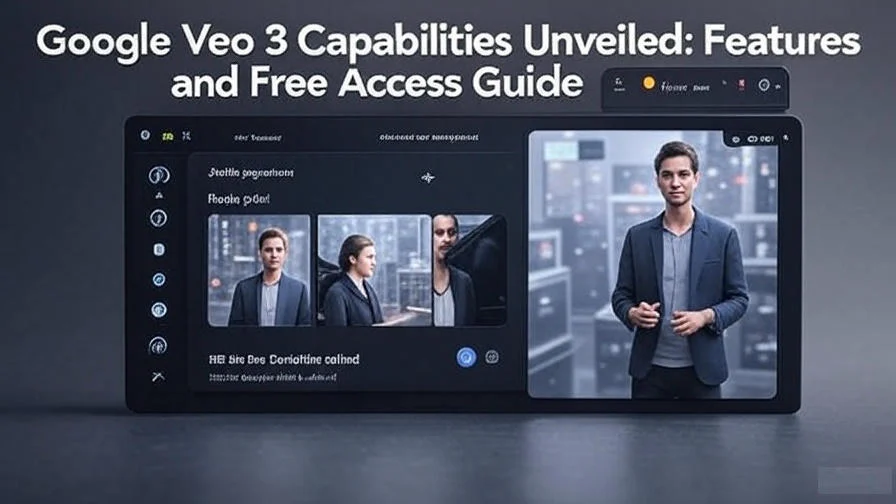
Google Veo 3 Capabilities Unveiled: Features and Free Access Guide
What Is Google Veo 3 and Its Capabilities?
Google Veo 3 is an advanced AI model designed to create high-quality video content from simple prompts. Building on Veo 2, it introduces features that set it apart:
- Native Audio Integration: Generates realistic audio, including dialogue, sound effects, and background noises, all perfectly synced with the video.
- Lifelike Visuals and Physics: Produces natural motion, detailed textures, and accurate physics—like flowing water or waving fabric.
- Precise Lip-Syncing: Aligns spoken words with character lip movements, ideal for animated or live-action-style clips.
- Complex Narrative Comprehension: Interprets detailed prompts to craft cohesive short scenes with minimal input.
- Customizable Styles and Camera Work: Allows users to define artistic styles, camera angles, and movements for a cinematic touch.
- Flow Integration: Pairs with Google’s AI filmmaking tool, Flow, to build multi-scene narratives or edit videos seamlessly.
However, there are caveats. Videos are limited to 5-8 seconds, and full access is restricted to the US. Generating realistic human faces may require approval due to Google’s content guidelines. Despite these limits, Veo 3’s potential is exciting for creative minds.
How to Use Google Veo 3 for Free
Veo 3 is part of the Google AI Ultra subscription ($249.99/month), but there are ways to explore it for free using official Google resources. Below are three detailed methods available as of May 2025.
Method 1: Leverage Google Cloud $300 Free Credits
Google Cloud offers new users $300 in free credits for 90 days, which can be used to access Veo 3 via the Vertex AI platform. Here’s how to do it:
- Step 1: Sign up for a new Google Cloud account at cloud.google.com/free. Verify your account with a credit card (no charges apply during the trial).
- Step 2: Log in to the Google Cloud Console and create a new project. Name it something memorable, like “Veo3Test.”
- Step 3: Navigate to APIs & Services > Library, search for “Vertex AI API,” and enable it. You may need to request allowlist access for Veo 3 (model ID: veo-3.0-generate-preview) by submitting a form at Google’s Veo preview page. This can take a few days, so plan ahead.
- Step 4: Set up billing in the console and apply your $300 credits. Use the Vertex AI interface to input prompts (e.g., “A sunny beach with waves crashing, cinematic style”) and generate videos. At approximately $0.35 per second, you can create about 14 minutes of content. Monitor usage to stay within the free tier.
This method requires some technical setup but offers the most flexibility for free access.
Method 2: Enroll in Educational Access Programs
Google provides free or discounted AI tool access for students and educators in select regions. Here’s how to tap into it:
- Step 1: Visit Google for Education and check eligibility. This program is available to students and educators in the US, Canada, UK, Brazil, Japan, and Indonesia. You’ll need a valid .edu email or proof of enrollment.
- Step 2: Apply for the Google AI Pro plan, which offers free access until finals 2026 for eligible users. Submit your application through the Google AI Education Portal. Approval may take 5-10 business days.
- Step 3: Once approved, download the Gemini app from the Google Play Store or App Store (iOS). Log in with your educational account and access Veo 3 under the video generation section. You’ll receive a limited number of free credits (typically 5-10 videos monthly).
- Step 4: Experiment with prompts like “A robot dancing in a neon city” and adjust settings as needed.
This option is ideal for learners but requires academic affiliation and regional eligibility.
Method 3: Take Advantage of the Google AI Pro Free Trial
The Google AI Pro subscription ($19.99/month) includes a one-month free trial, which some users have used to access Veo 3. Here’s the detailed process:
- Step 1: Sign up for the trial at ai.google.com/pro. Use a new or existing Google account and enter payment details (you won’t be charged unless you forget to cancel before the trial ends).
- Step 2: After subscribing, download the Gemini app from the Google Play Store or App Store. Log in and navigate to the video tools section.
- Step 3: Look for Veo 3 under the model options (some users on X report it appearing during the trial, though it’s primarily Veo 2-focused). If available, select it and input a prompt like “A puppy playing in the snow with sound.”
- Step 4: Generate up to 10 videos during the trial. Set a reminder to cancel before the 30-day period ends (via Google One settings) to avoid charges.
This method is the quickest but requires vigilance to avoid post-trial costs.
How to Use Google Veo 3 (Paid or Free Access)
With access secured, here’s how to create videos:
- Step 1: Open the Gemini app or Flow interface (available at ai.google.com/flow with a subscription).
- Step 2: Tap the “Video” option in the prompt bar.
- Step 3: Enter a detailed prompt, e.g., “A futuristic city at dusk with flying cars and ambient traffic sounds.”
- Step 4: Adjust settings like length (5-8 seconds) and style in Flow, if accessible.
- Step 5: Hit “Generate” and wait 2-3 minutes for your video with audio.
Use specific prompts and avoid multi-scene requests for the best results.
What Users Are Saying
As of late May 2025, X posts praise Veo 3’s audio sync and realism, with users calling it “a filmmaking revolution.” Others note its US-only restriction and high cost as drawbacks, urging Google to expand access.
Google Veo 3 is a powerful AI video tool with features like audio sync and realistic visuals, perfect for creative projects. While it’s a premium service, you can try it for free using Google Cloud credits, educational programs, or a trial. Keep an eye on its limitations—short clips and regional locks—but don’t miss out on testing this innovation. Start creating today!
Got questions about Veo 3? Share them in the comments—we’re here to help!







2 thoughts on “Google Veo 3 capabilities? How to use it for free?”