Bringing Pharaohs to Life: How to Animate & Colorize Ancient Egyptian Statues using AI on Mac
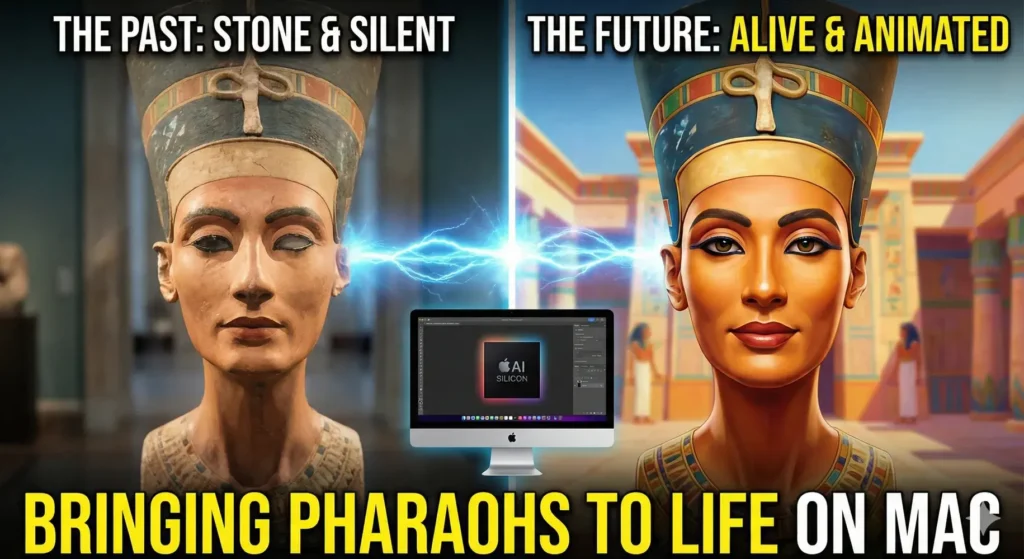
For thousands of years, the great kings and queens of Ancient Egypt have stared at us through stone eyes. We see the statues of Ramses II, Nefertiti, and Hatshepsut in museums, frozen in time – cracked, colorless, and silent.
But as technology enthusiasts (and history lovers), we know that these statues were once vibrant. They were painted with bright colors, and they represent living, breathing humans.
In 2026, you don’t need a time machine to see them move. You just need an Apple Silicon Mac.
In this guide, we will walk you through a two-step workflow to Restore the color of ancient statues and Animate them using your own facial expressions. No cloud subscriptions, no expensive studios – just local AI.
Phase 1: The Restoration (Color & Skin)
Statues are made of granite or limestone. To make them move realistically, we first need to turn “Stone” into “Skin.”
The Tool: Stable Diffusion (Automatic1111) or DiffusionBee
We recommend Automatic1111 via Pinokio for the best control.
Step 1: Img2Img (Image-to-Image)
1. Find a High-Quality Image: Download a high-resolution photo of a statue (e.g., the bust of Nefertiti or a statue of Thutmose III).
2. Open Stable Diffusion: Go to the “img2img” tab.
3. Upload the Photo: Drag your statue image into the input box.
4. The Prompt: This is crucial. You want to tell the AI to keep the structure but change the material.
• Positive Prompt: “Hyper-realistic portrait of an Ancient Egyptian pharaoh, golden brown skin, real skin texture, pores, cinematic lighting, 8k, detailed eyes.”
• Negative Prompt: “Stone, marble, cracks, statue, gray, monochrome, cartoon.”
5. Denoising Strength: Set this to 0.3 to 0.4.
• Why? If it’s too high (0.7+), the AI will change the face completely. If it’s too low (0.1), it will stay looking like stone. You want the “Sweet Spot” where stone turns to skin, but the face remains recognizable.
Result: You now have a photo of what looks like a living person, not a statue.
Phase 2: The Awakening (Animation)
Now that we have a realistic portrait, it’s time to make it move. We will use a technology called “Motion Transfer.”
The Tool: LivePortrait (Running on Pinokio)
LivePortrait is the superior choice in 2026 because it handles head movements and blinking much better than old lip-sync tools.
Step 1: Install LivePortrait
Open your Pinokio browser (which we discussed in our previous guide) and search for “LivePortrait.” Click install.
Step 2: Prepare the “Driver” Video
You need a video to “drive” the animation.
1. Sit in front of your Mac’s webcam.
2. Record a 10-second video of yourself.
3. Action: Blink naturally, smile slightly, look left and right slowly. Do NOT move your head too fast.
4. Save this video.
Step 3: The Fusion
1. Source Image: Upload the “Restored/Colorized” image you created in Phase 1.
2. Driving Video: Upload the video of yourself.
3. Settings: Enable “Relative Motion” (this ensures the statue doesn’t distort if your head shape is different).
4. Generate: Hit Run.
On an M3/M4 chip, this takes seconds. On an M1, it might take a minute.
The Result: The Pharoah on your screen will blink, look around, and mimic your expressions. It is a spine-chilling and magical moment seeing a 3,000-year-old face smile back at you.
Bonus: Making Them Speak (Lip Sync)
If you want the statue to actually talk (perhaps reading a historical text or a quote from the Book of the Dead):
1. Take the Animated Video you just made in LivePortrait.
2. Feed it into SadTalker or Wav2Lip (also on Pinokio).
3. Upload an audio file (perhaps a generated AI voice reading the history).
4. The AI will modify the mouth movement of your animated video to match the words perfectly.
A Note on Ethics & History
As we use these powerful tools, remember that this is Artistic Interpretation. We are using AI to imagine the past. While we can use historical data to guess skin tones and eye colors, we cannot be 100% sure.
However, for educational purposes—museum displays, YouTube history channels, or personal curiosity—this is the most immersive way to connect with history available today.
Conclusion
Your Mac is not just a computer; it is a bridge to the past. By combining Stable Diffusion (for restoration) and LivePortrait (for animation), you can breathe life into the silent stones of Egypt.
Have you tried animating a historical figure? Share your results with us on Twitter/X using #iTech4MacHistory!